Anchor Campaigns
MarketerIntermediate~9 mins
Introduction
An Anchor Campaign groups related marketing campaigns into a single performance view. By consolidating cross-channel efforts like email, social, and search, you can track how an entire initiative performs as a whole rather than managing fragmented reports.
Anchor Campaigns reduce errors from siloed or inconsistently named campaigns and help you quickly identify areas that need optimization.
In this workshop, you will create an anchor campaign in Marketing Intelligence, which automatically generates an Anchor Campaign dashboard. You can then use the dashboard to filter campaign data, monitor performance, and analyze key metrics.
Create an Anchor Campaign
- Search and select
Marketing Intelligencefrom App Launcher. - Click the Data Management tab.
- Select Anchor Campaigns from the navigation pane.
- Click New Anchor Campaign.
- Enter
Corporate Branding Campaignin the Name field. - Click Next.
- Under Method, select Filters.
- Select Today in the Start Date field.
- Select a date three months from today in the End Date field.
- Enter and select
Campaign Namefrom the Filters menu. - Select Contains from the Operator menu.
- Enter
Brand Awarenessin the Value field. - Click Apply.
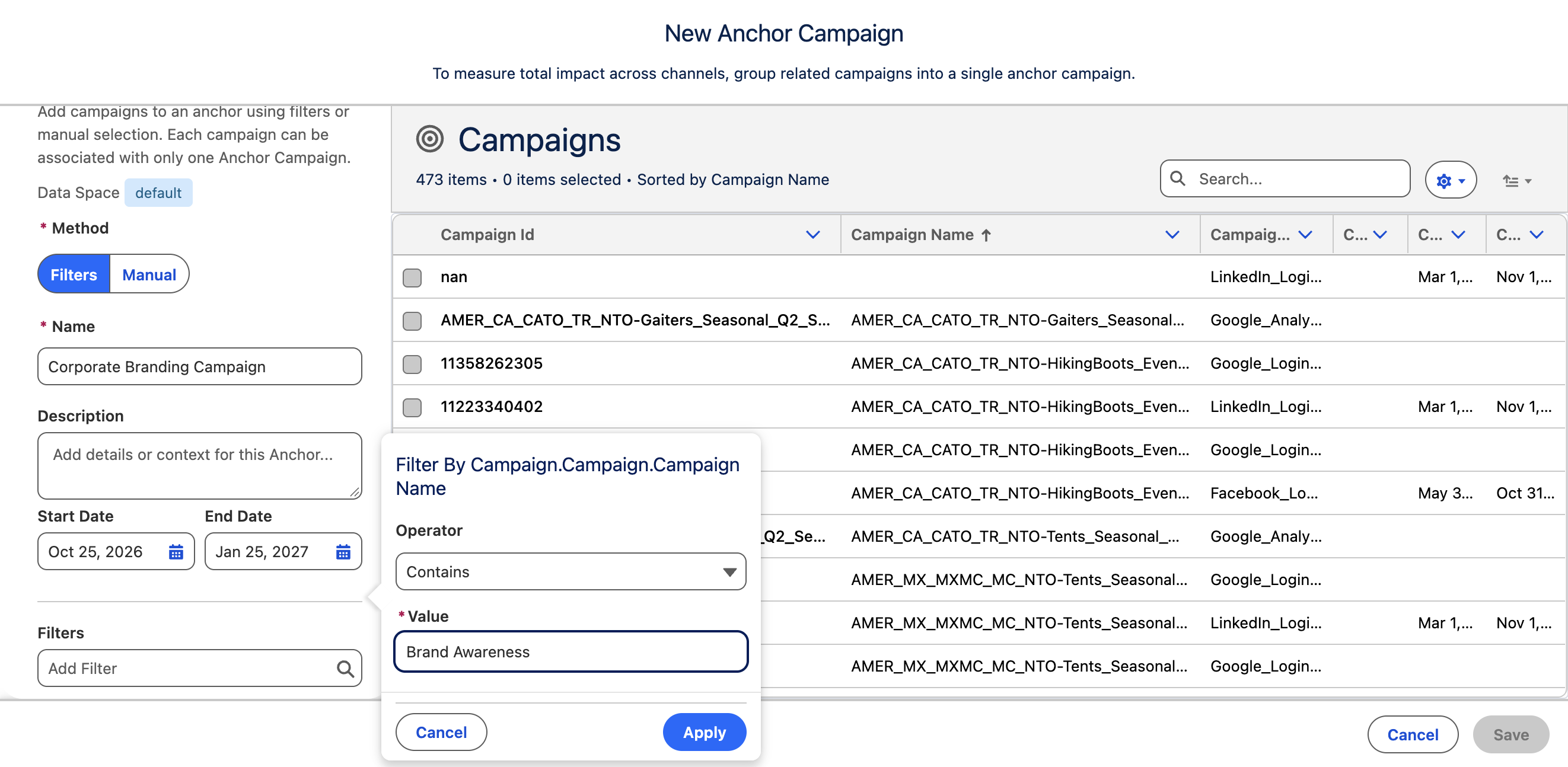
- Click Save.
- Click the
refresh icon to update the page. - Repeat the previous step until the anchor campaign's Last Run Status displays Success.

View Anchor Campaign Performance
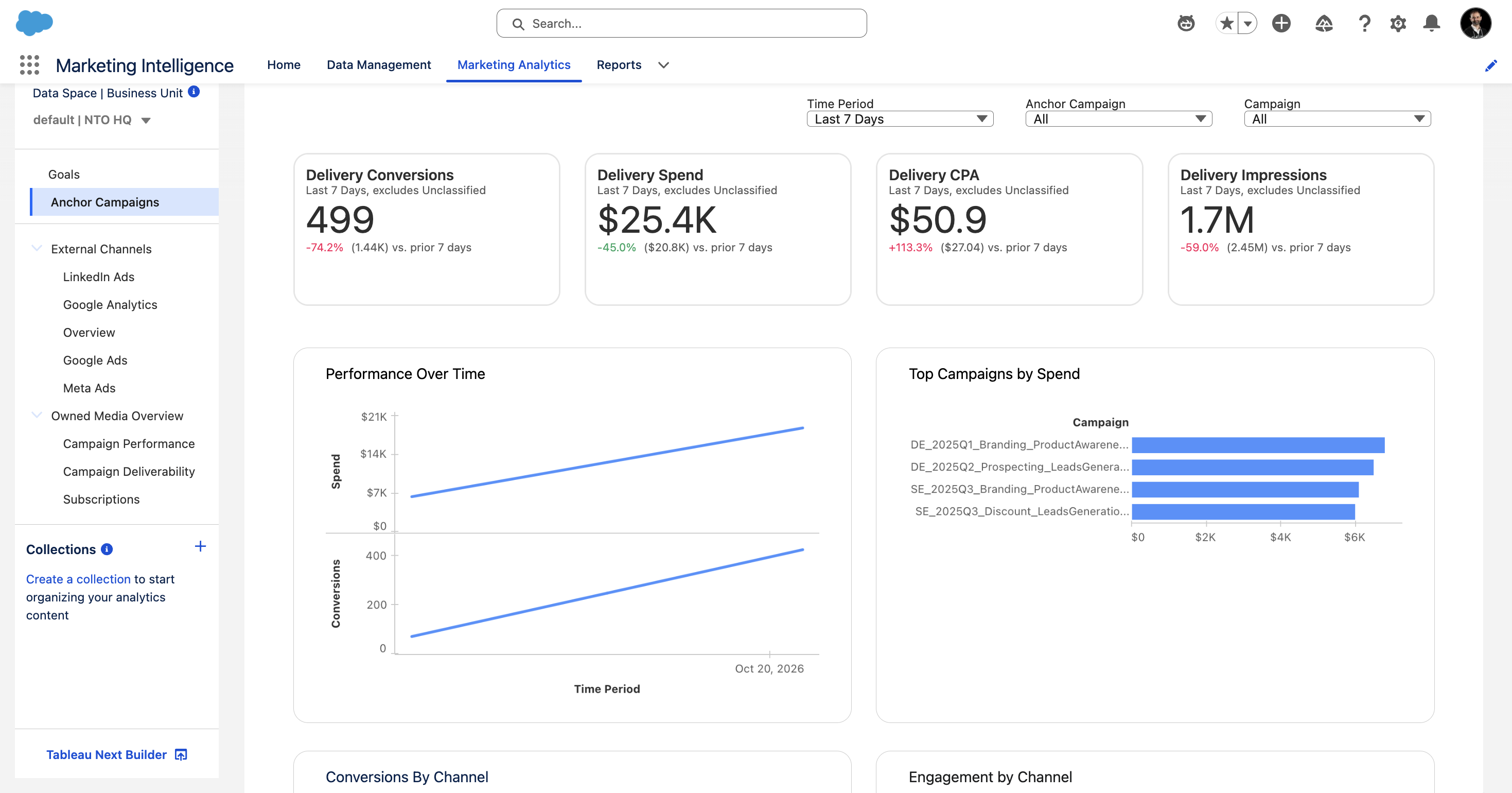
- Click on the Marketing Analytics tab.
- Select Anchor Campaigns from the navigation pane if the Anchor Campaigns dashboard is not displayed.
- Review the generated dashboard to analyse the anchor campaign's performance and key metrics.