Dashboards
AdministratorIntermediate~14 mins
Overview
Dashboards in Marketing Intelligence help you analyze performance, assess marketing impact, and understand customer behavior across channels, campaigns, and segments.
Powered by Tableau Next, dashboards provide an at-a-glance view of program health through prebuilt marketing dashboards, AI-generated campaign summaries, and Agentforce recommendations for improving underperforming campaigns.
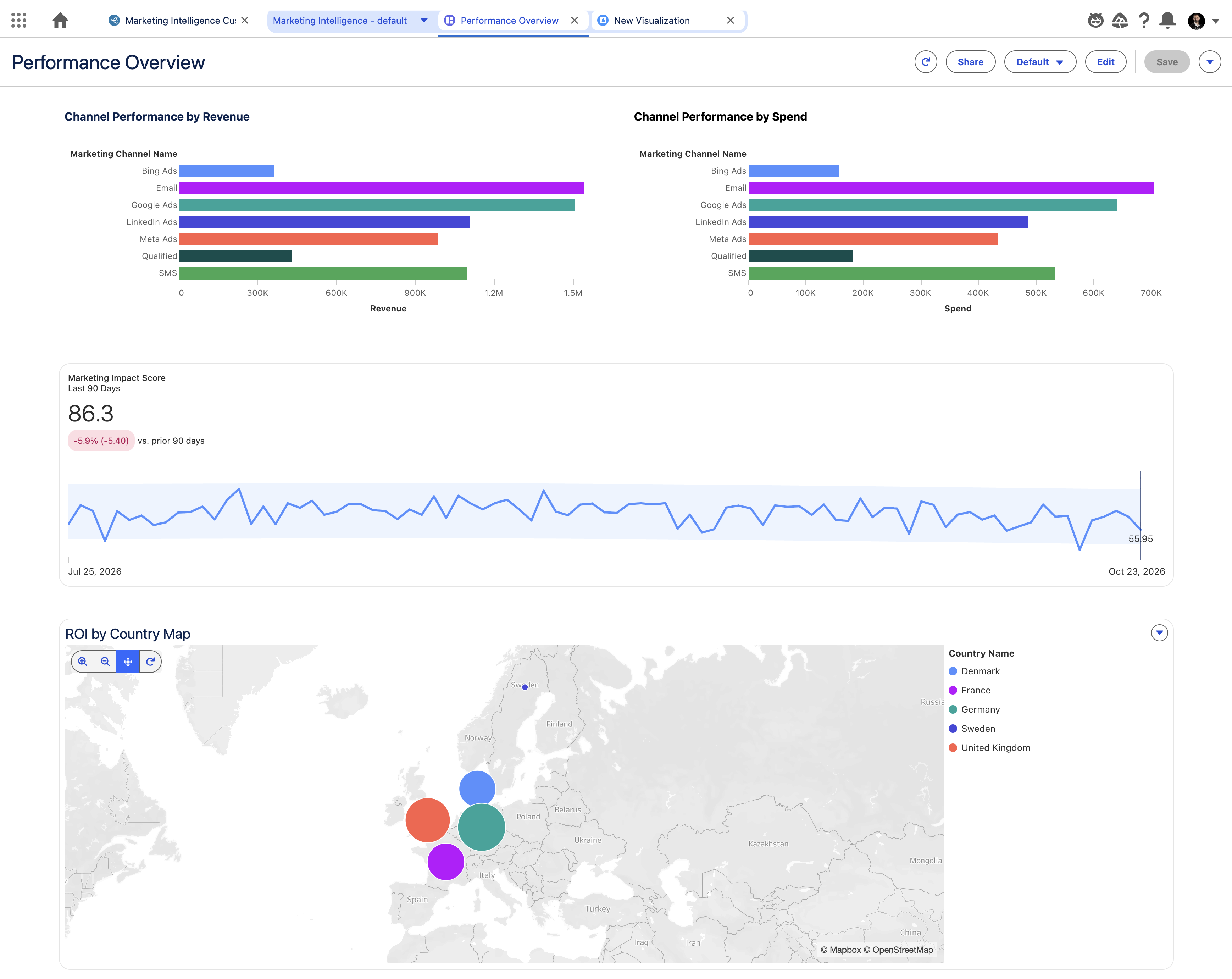
In this workshop, you’ll create metrics and visualization widgets, then add them to the prebuilt Marketing Performance dashboard.
Create Metric Widget
- Search and select
Tableau Nextfrom App Launcher. - Click Browse on the page menu.
- Enter
Performance Overviewin the Search field, then select the matching dashboard to open it. - Click Edit.
- Click on the
Add Metric Widget icon from the toolbar, then select an area on the dashboard canvas.
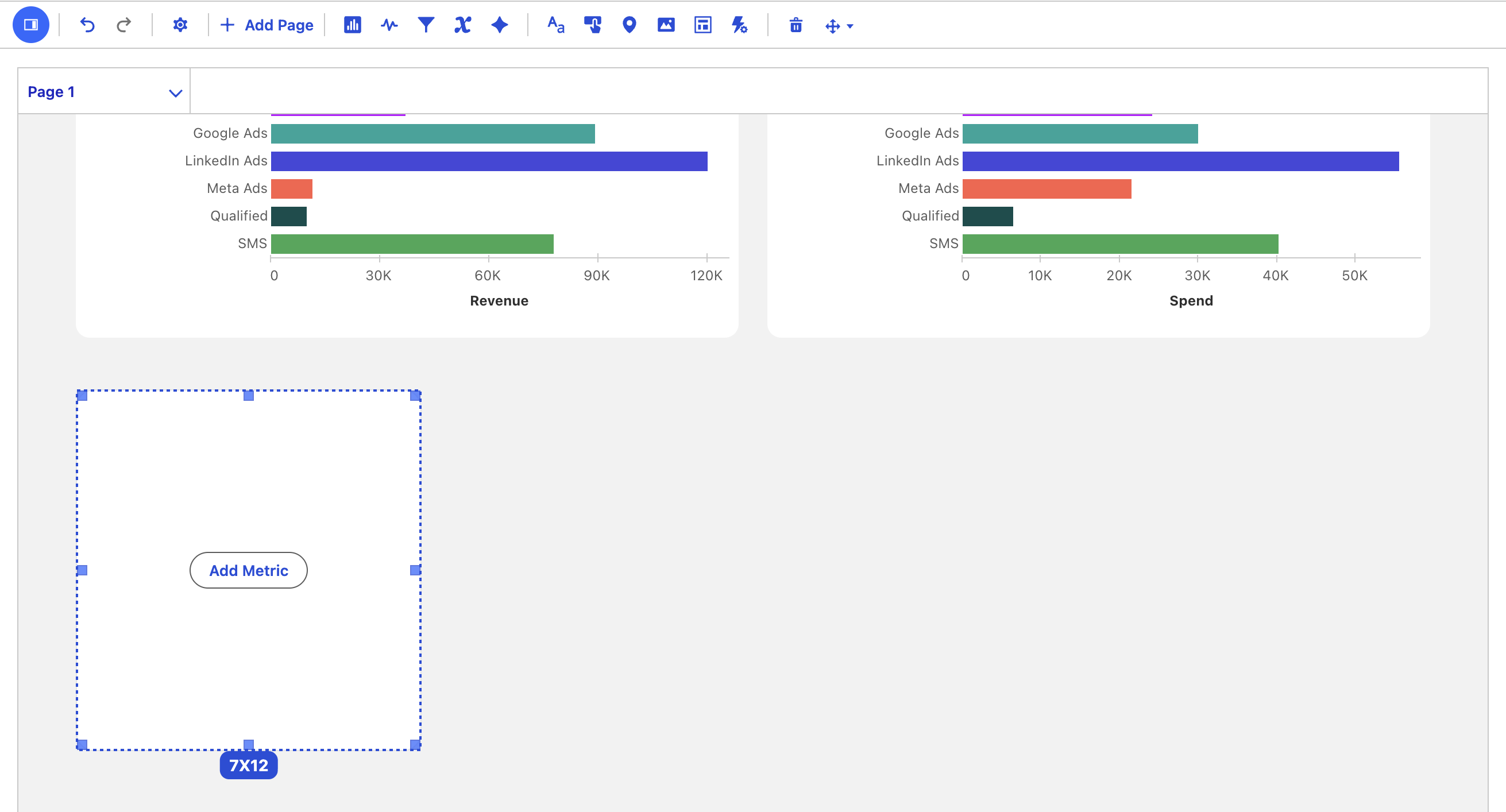
- Click Add Metric.
- Select the Marketing Impact Score row, then click Add.
- Resize the widget to 7X47.
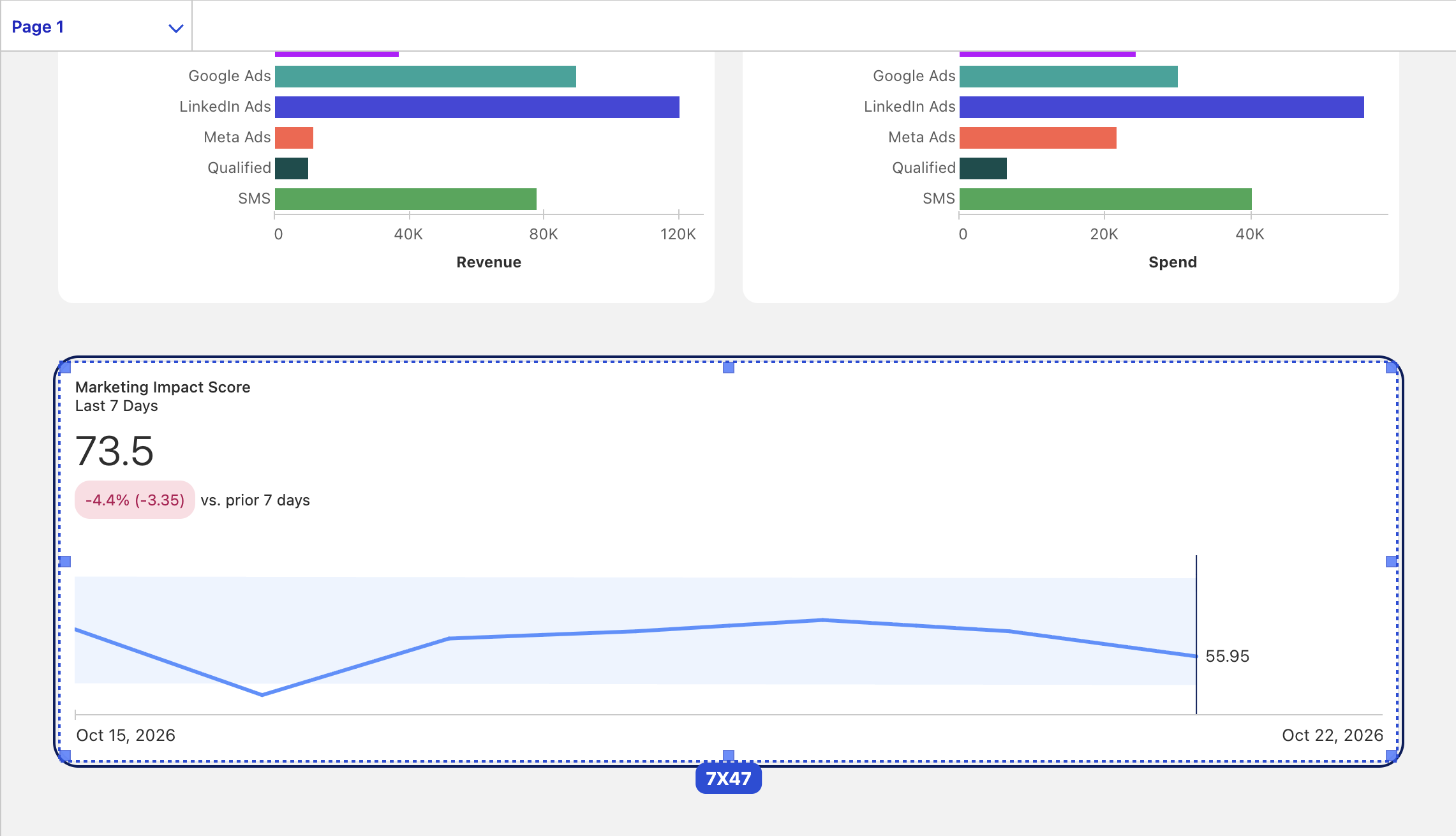
- Click Save.
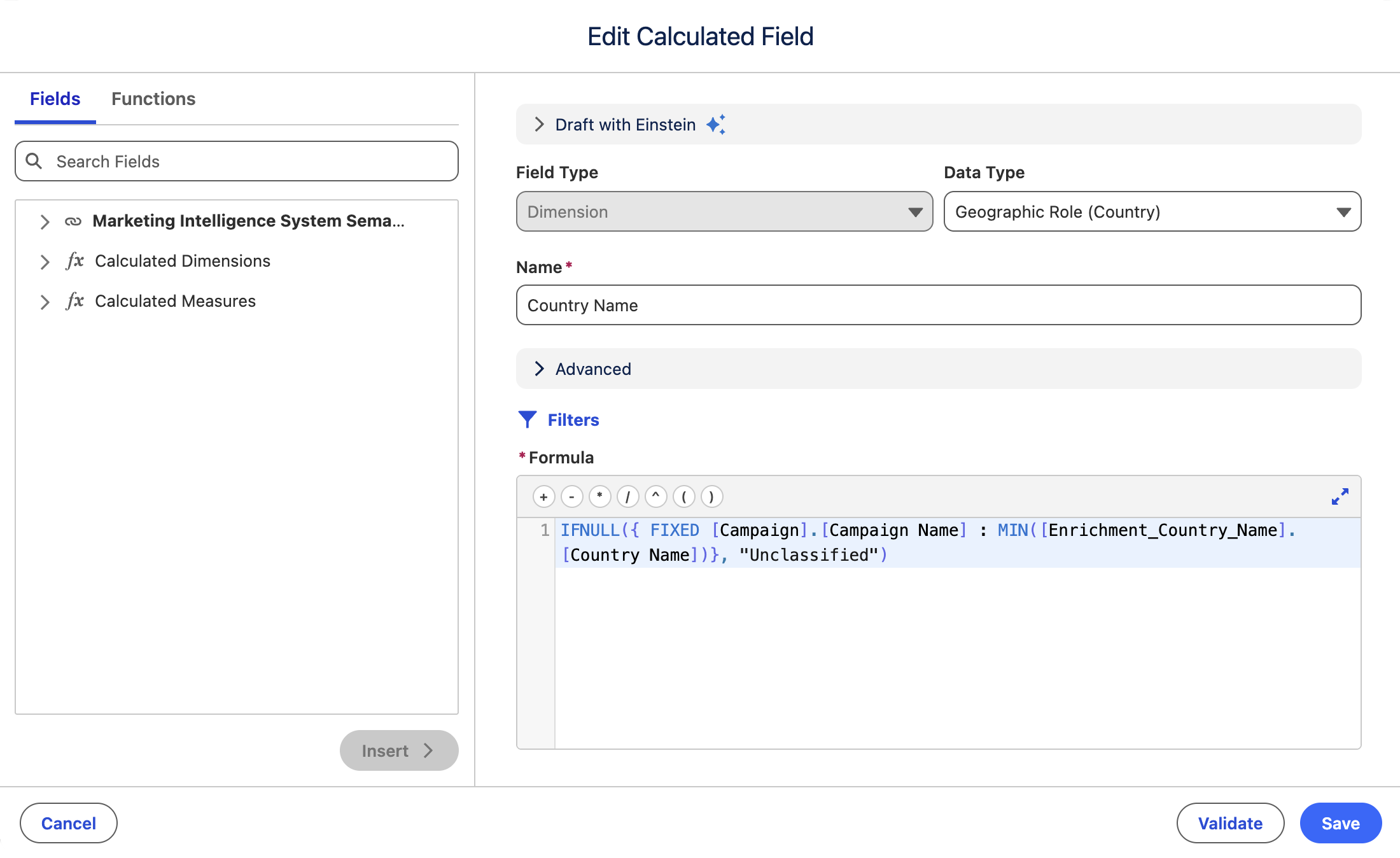
- Navigate to the Marketing Intelligence Custom Semantic Model page.

- Enter
Country Namein the Objects search field, then select the Country Name Calculated Field. - Select Geographic Role > Country from the Data Type menu.
- Click Save, then click Confirm when prompted to override the calculated field.
Create Visualization Widget
- Navigate back to the Performance Overview dashboard.
- Click on the
Add Visualization Widget icon from the toolbar, then select an area on the dashboard canvas. - Resze the widget to 11X47.
- Click Add Visualization.
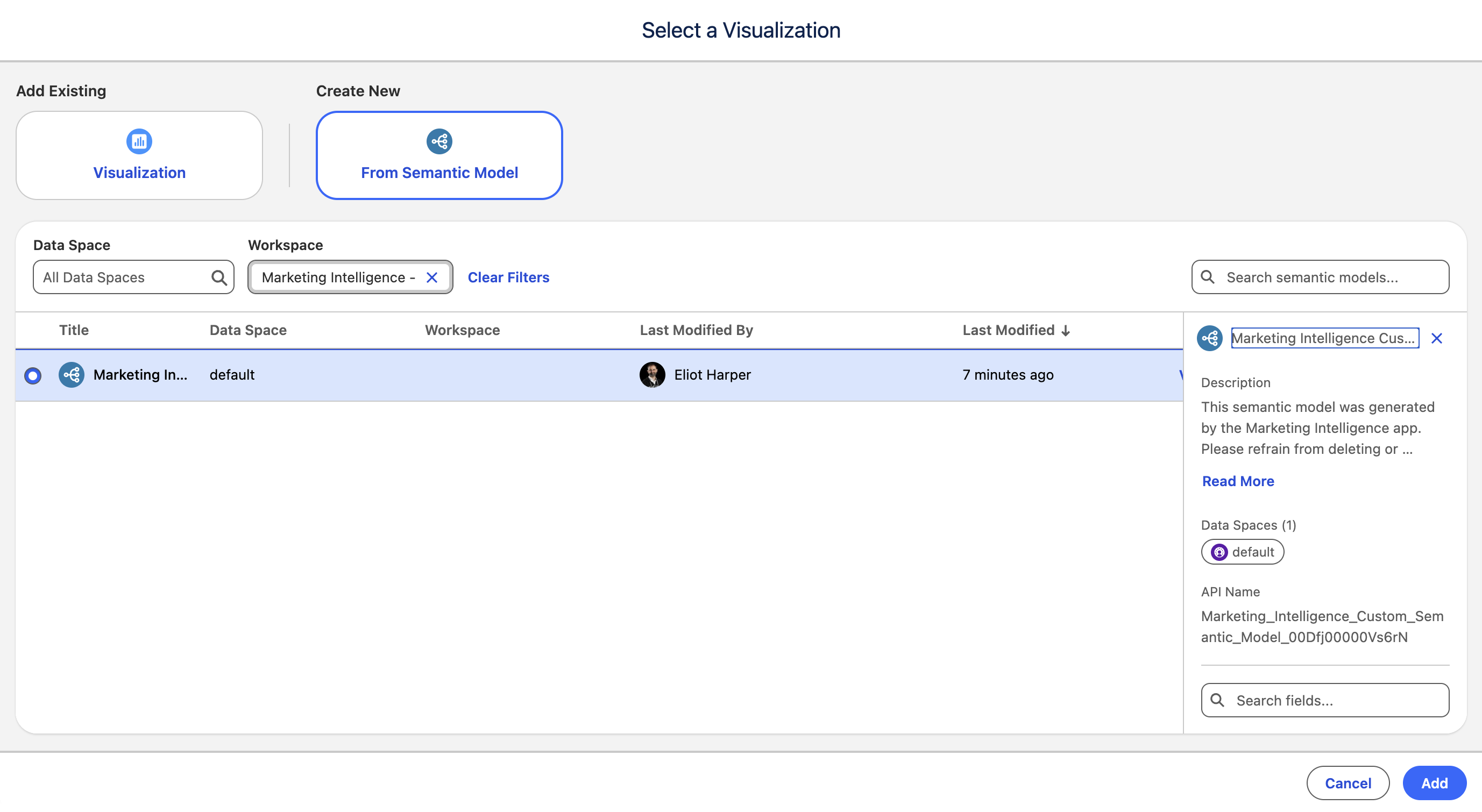
- Click From Semantic Model below the Create New heading.
- Select the Marketing Intelligence Custom Semantic Model row, then click Add.
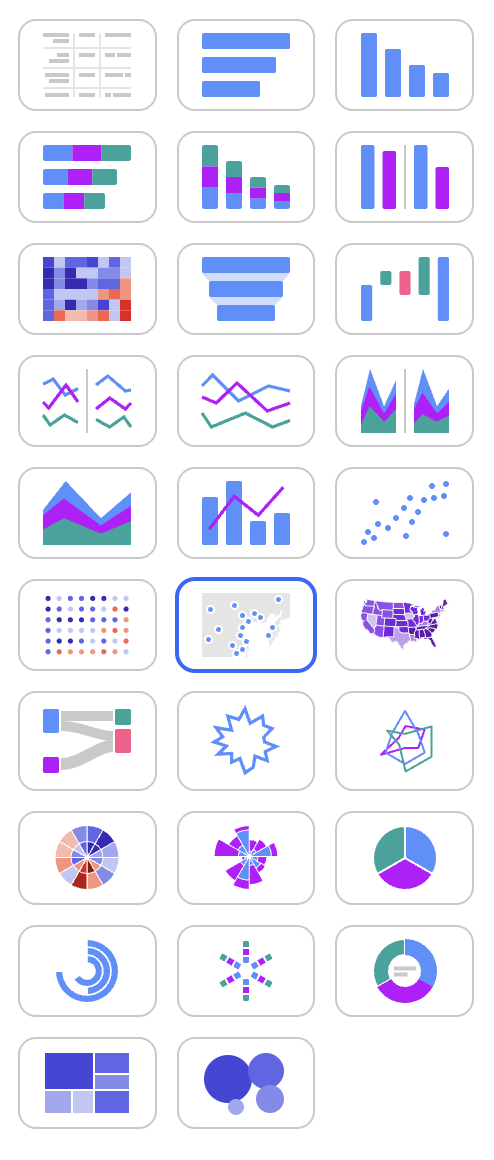
- Select the Map chart type from the Show Me pane.
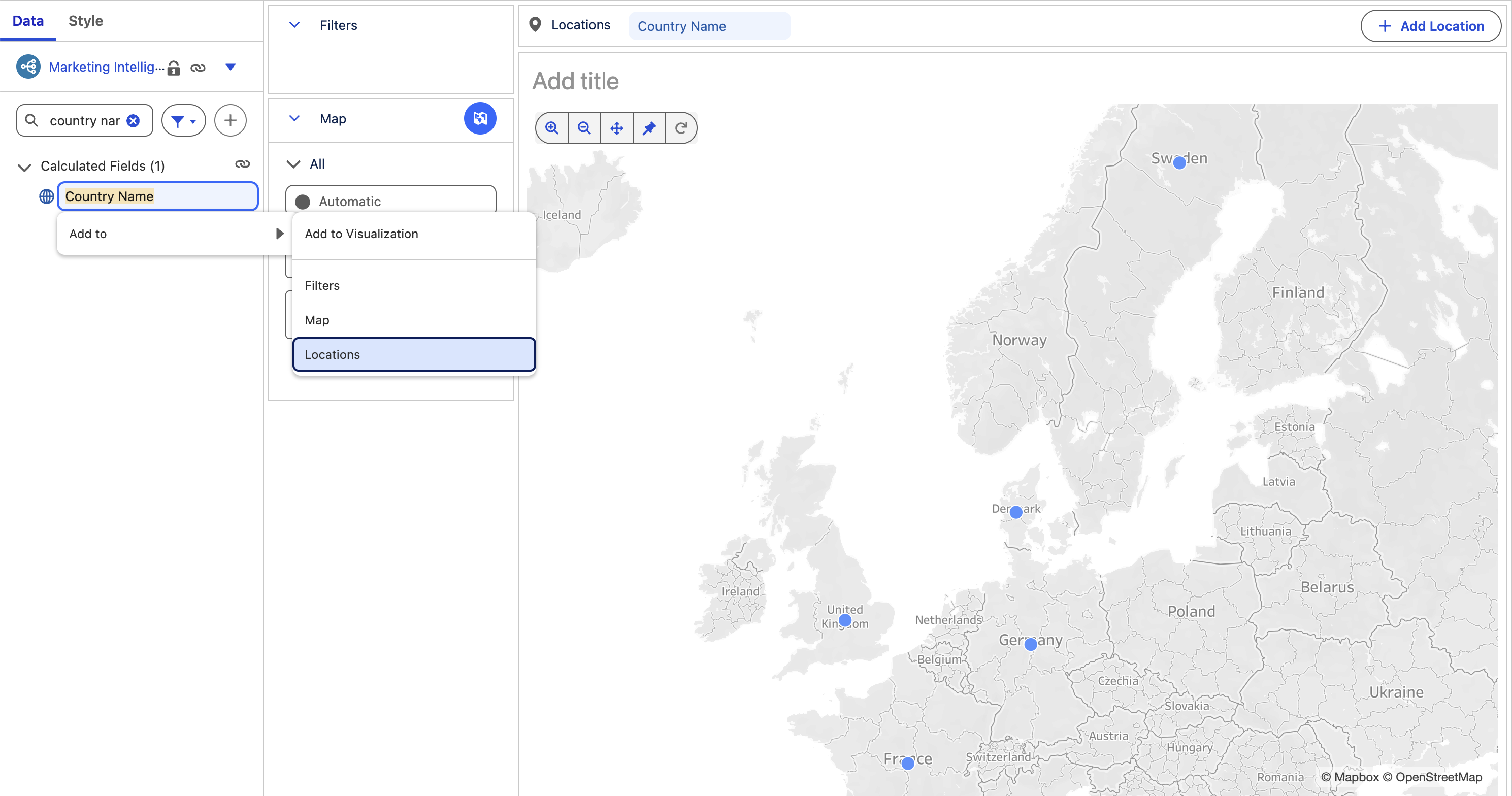
- Enter
Country Namein the Data Search field, then click the calculated field and select Add ToLocations from the field menu.
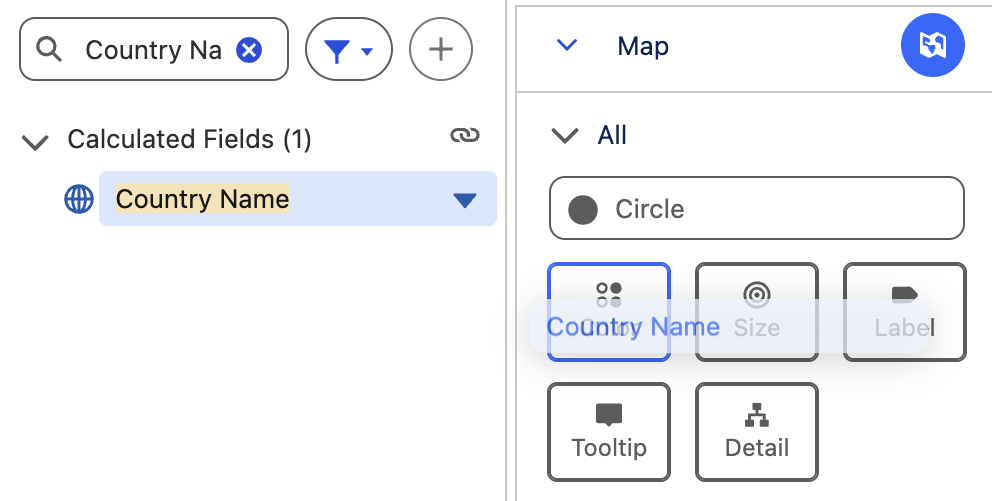
- Drag the Country Name calculated field to the Color type on the Marks card, then release.
- Enter
Delivery ROIin the Data Search field, then drag the Delivery ROI calculated field to the Size type on the Marks card, then release. - Click on Size and update the following field values:
- Min % of Cell:
2 - Max % of Cell:
15
- Min % of Cell:
- Click on Add title, then enter
ROI by Country Mapinto the text area field and click Apply. - Click on the New Vizualization widget name in the top left corner of the page, then enter
ROI by Country Map. - Click Save.
- Navigate back to the Performance Overview dashboard.
- Click Preview.
- Select different periods from the Time Period menu and preview the dashboard metrics.