
Promotions
Introduction
A promotion is a time-limited offer that rewards members for meeting specific conditions. It can help attract new members, encourage existing members to take particular actions, and support sales goals.
For example, members might earn 500 bonus points when they spend $100 or receive a voucher after making three qualifying purchases.
By offering relevant rewards, such as points or vouchers, promotions can encourage purchases and engagement while helping the business meet its revenue and return-on-investment goals.
In this workshop, you’ll create two types of promotions: a standard promotion that rewards a specific member activity, and a cumulative promotion that rewards sustained behaviour or engagement over time.
Create a Promotion Using the Quick Promotion Wizard
The Quick Promotion Wizard guides you through creating and activating promotions. It provides a predefined editor for configuring eligibility conditions and reward actions, then automatically creates the Promotion record and associated rules.
- Search for
Loyalty Managementfrom App Launcherand select the menu item. - Click the NTO Insider program name from the loyalty program list view.
- Click the Crate Promotion card.
- Enter the following values:
| Field Name | Value |
|---|---|
| Name | Holiday Promotion |
| Description | Increase engagement during holiday period |
| Start Date and Time | Today at 12:00 AM |
| End Date and Time | One month from today at 12:00 AM |
- Click Next.
- Toggle on Do you want members to enroll for the promotion?.
- Set Today as Enrollment Start Date.
- Set one month from today as Enrollment End Date.
- Click Next.
- Select Accrual Events from the Loyalty Promotions section, then click Next.
- Select Purchase from Eligible Member Event.
- Select the Members must spend a minimum amount checkbox.
- Enter
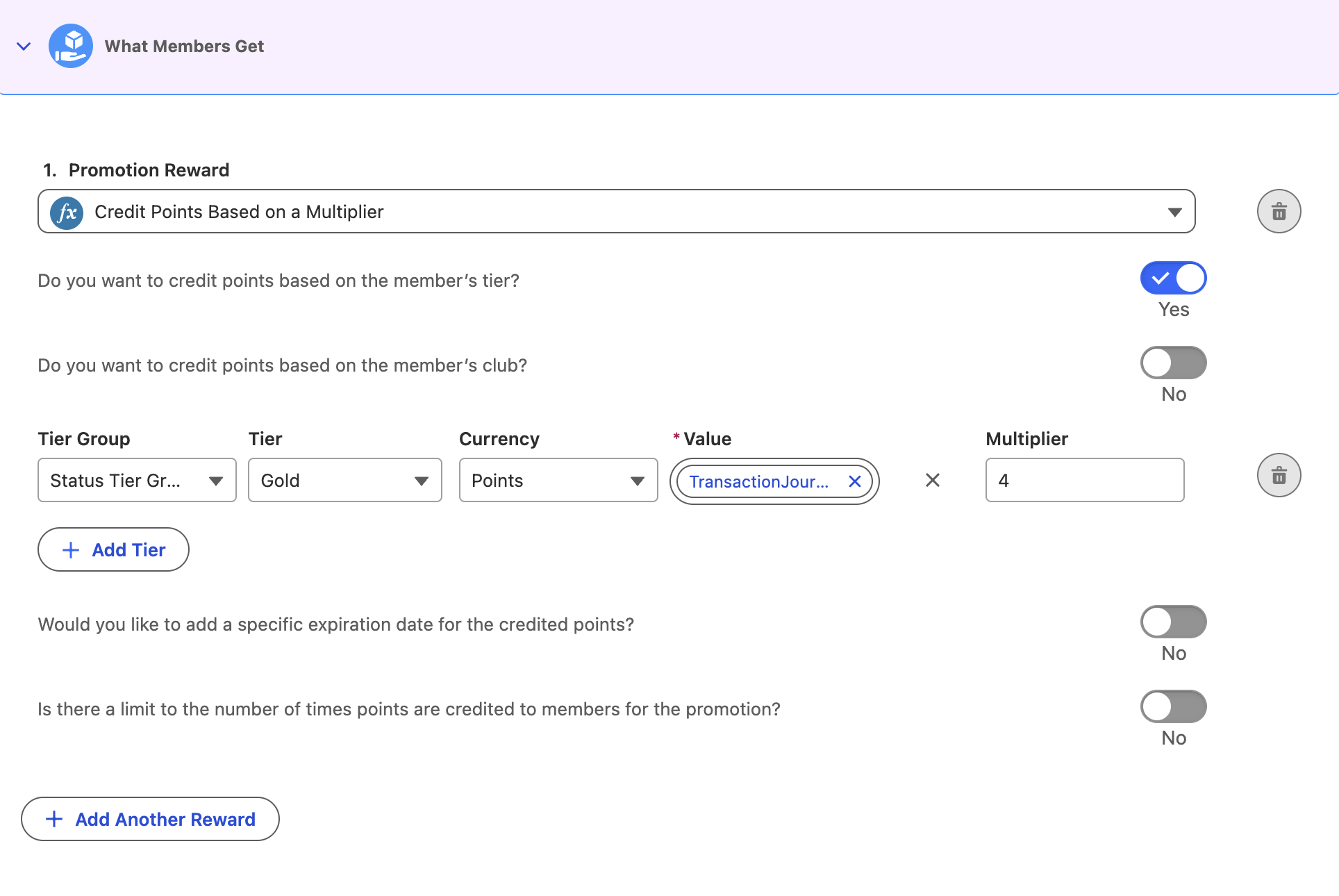
50in the Minimum Purchase Amount field. - Select Credit Points Based on a Multiplier from the Promotion Reward menu.
- Configure the following promotion settings:
| Setting | Value |
|---|---|
| Do you want to credit points based on the member’s tier? | Yes |
| Tier Group | Status Tier Group |
| Tier | Gold |
| Currency | Points |
| Value | Transaction Journal > Transaction Amount |
| Multiplier | 4 |
- Click
Add Another Reward. - Select Issue Vouchers from the Promotion Reward menu.
- Configure the following promotion settings:
| Setting | Value |
|---|---|
| Voucher Definition | 10% on Apparel |
| Would you like to add a specific expiration date for the issued vouchers? | Yes |
| Expiration Date | One month from today |
| Is there a limit to the number of times vouchers are issued to members for the promotion? | Yes |
| Limit | 1 |
- Click Next.
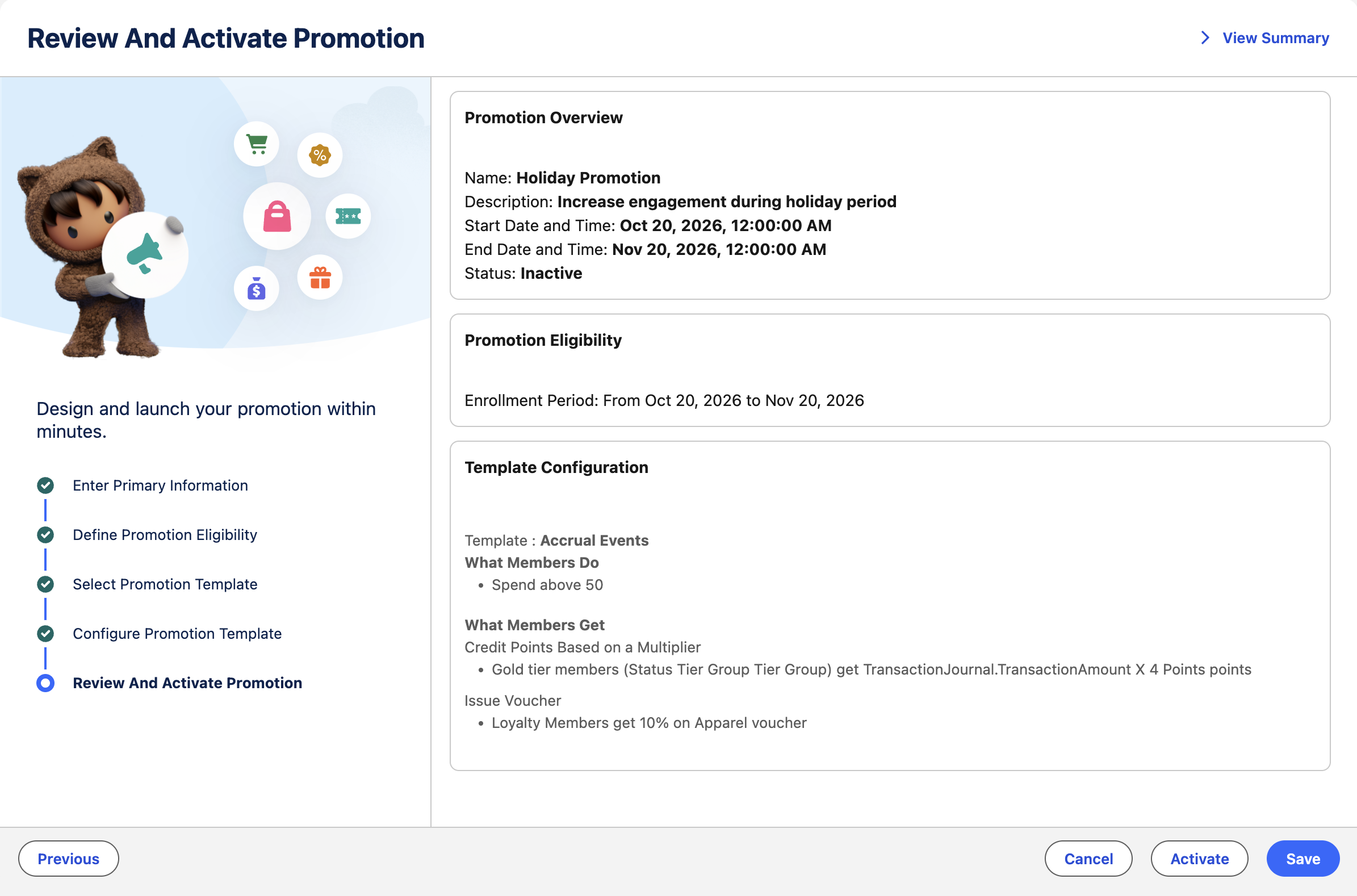
- Review promotion summary, then click Activate.
Create a Promotion Using Promotion and Related Objects
You can also create and configure promotions directly through the Promotion object and its related lists. This approach lets you build more complex rules using Rules Designer.
In this exercise, you’ll create a tier-based promotion that awards Silver-tier members triple points on their purchases.
- Open the Loyalty Programs tab and select the NTO Insider program name from the list view.
- Click the Experiences tab.
- Click New in the Promotions related list.
- Configure the following promotion settings:
| Section | Field Name | Value |
|---|---|---|
| -- | Name | 3X Bonus Promotion |
| -- | Description | 3X points for one month |
| -- | Fulfillment Action | Credit Points |
| -- | Loyalty Promotion Type | Standard |
| -- | Transaction Journal Type | Accrual |
| Points | Loyalty Program Currency | Points |
| Points | Points With Factor | Enabled |
| Points | Point Factor | 3 |
| Schedule | Start Date | First day of current month and year |
| Schedule | Last Date | Last day of current month and year |
- Click Save, but don't activate the promotion yet.
Define Promotion Rules
- Click on the link to NTO Insider in the Loyalty Program field to open the program page.
- Click the Manage Processes card.
- Click the Process for Accrual Transactions process.
- Click New in the Loyalty Process Rules related list.
- Enter
3X Bonus Promotion Rulein the Name field. - Enter and select
3X Bonus Promotionin the Promotion field.
Promotion Dates
The rule’s start and end dates are automatically set to match the promotion’s start and end dates.
- Select Base Rule form the Previous Process Rule menu.
- Click Save.
Create Condition
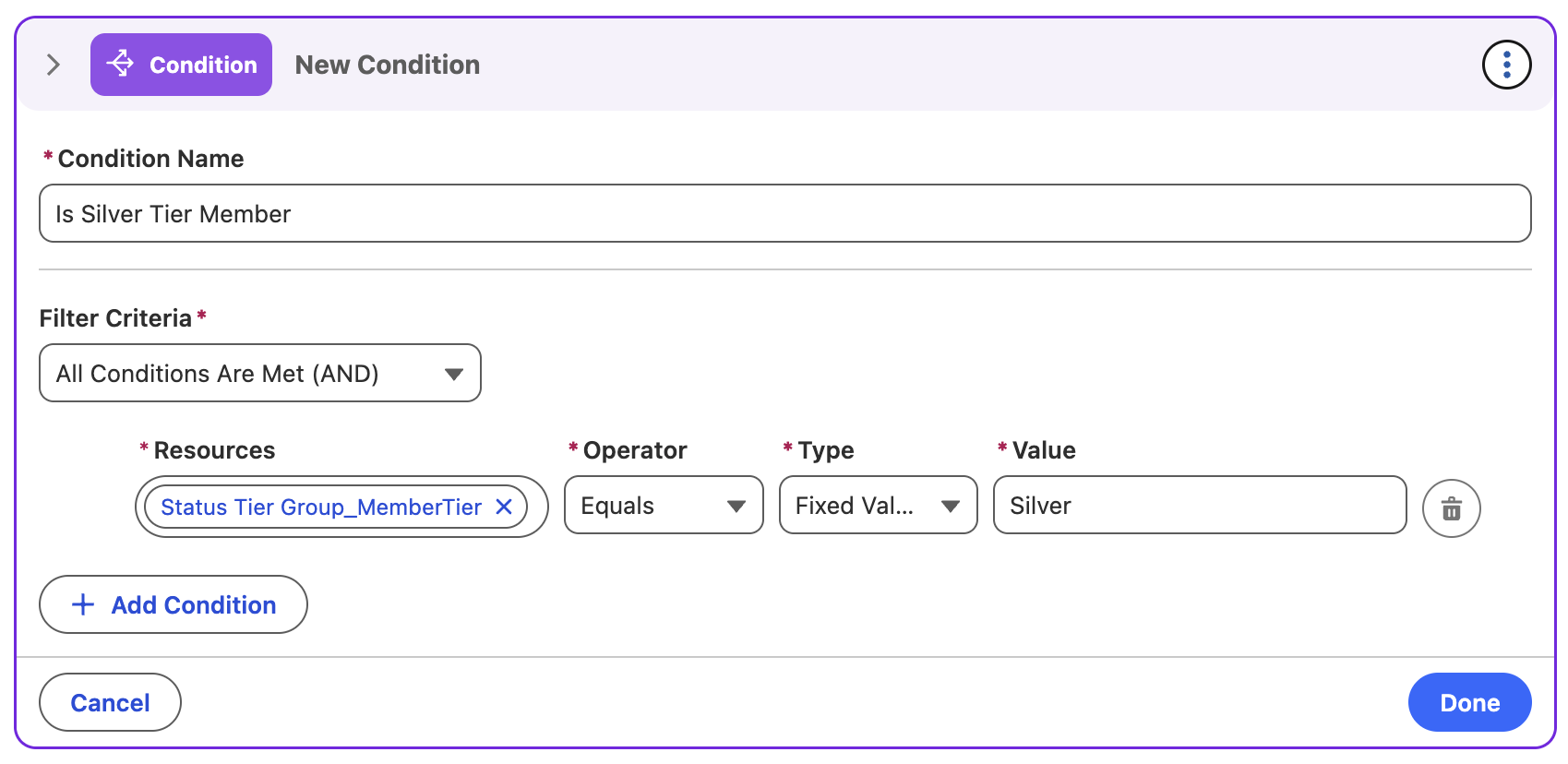
In this exercise, you will create a condition to check if the member belongs to the Silver tier.
- Click the
icon in the Rule Steps section, then select Add Condition. - Enter the following values:
| Field Name | Value |
|---|---|
| Condition Name | Is Silver Tier Member |
| Filter Criteria | All Conditions Are Met (AND) |
| Resources | Loyalty Parameters > Member > Member Tiers > Status Tier Group |
| Operator | Equals |
| Type | Fixed Value |
| Value | Silver |
Click Done.
Click the
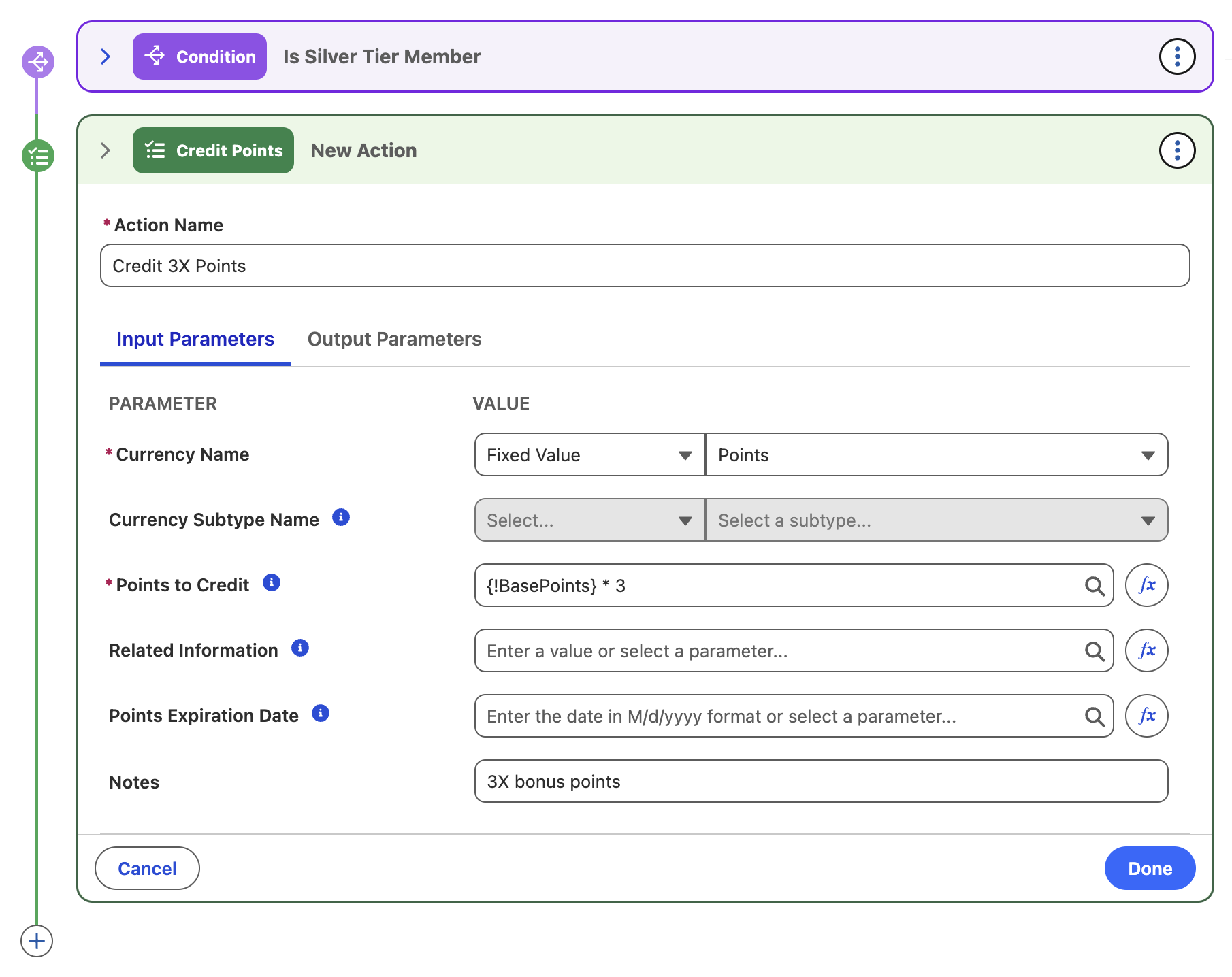
icon below the Is Silver Tier Member condition, then select Add Rule Outcome > Credit Points. Enter the following values:
| Field Name | Value |
|---|---|
| Action Name | Credit 3X Points |
| Currency Name | Fixed Value and Points |
| Points to Credit | Click {!BasePoints} * 3, then click Done. |
| Notes | 3X bonus points |
- Click Done.
- Click Save.
- Return to the promotion page by clicking the 3X Bonus Promotion link in the page heading.
- Select Edit from the page menu.
- Enable the Active checkbox.
- Click Save.
Activating Promotions
Activating a promotion also activates related process rules.