
Voucher Management
AdministratorFoundational~10 mins
Introduction
Vouchers are offered to customers and loyalty program members as rewards for engaging with the brand and as compensation for service recovery actions. A company and its loyalty programs can offer different types of vouchers based on their business requirements. You can also choose from a range of different options for how vouchers are issued to customers and members.
In this workshop you will create two vouchers and assign them to a loyalty program.
Create Vouchers
- Search for
Loyalty Managementfrom App Launcherand select the menu item. - Click the NTO Insider program name from the loyalty program list view.
- Click the Manage Vouchers card.
- Click New on the Voucher Definitions page.
- Enter
10% on Apparelin the Name field. - Select Discount Percentage from the Type menu.
- Select the Active checkbox.
- Enter
10as Discount Percentage. - Select NTO from the Partner menu.
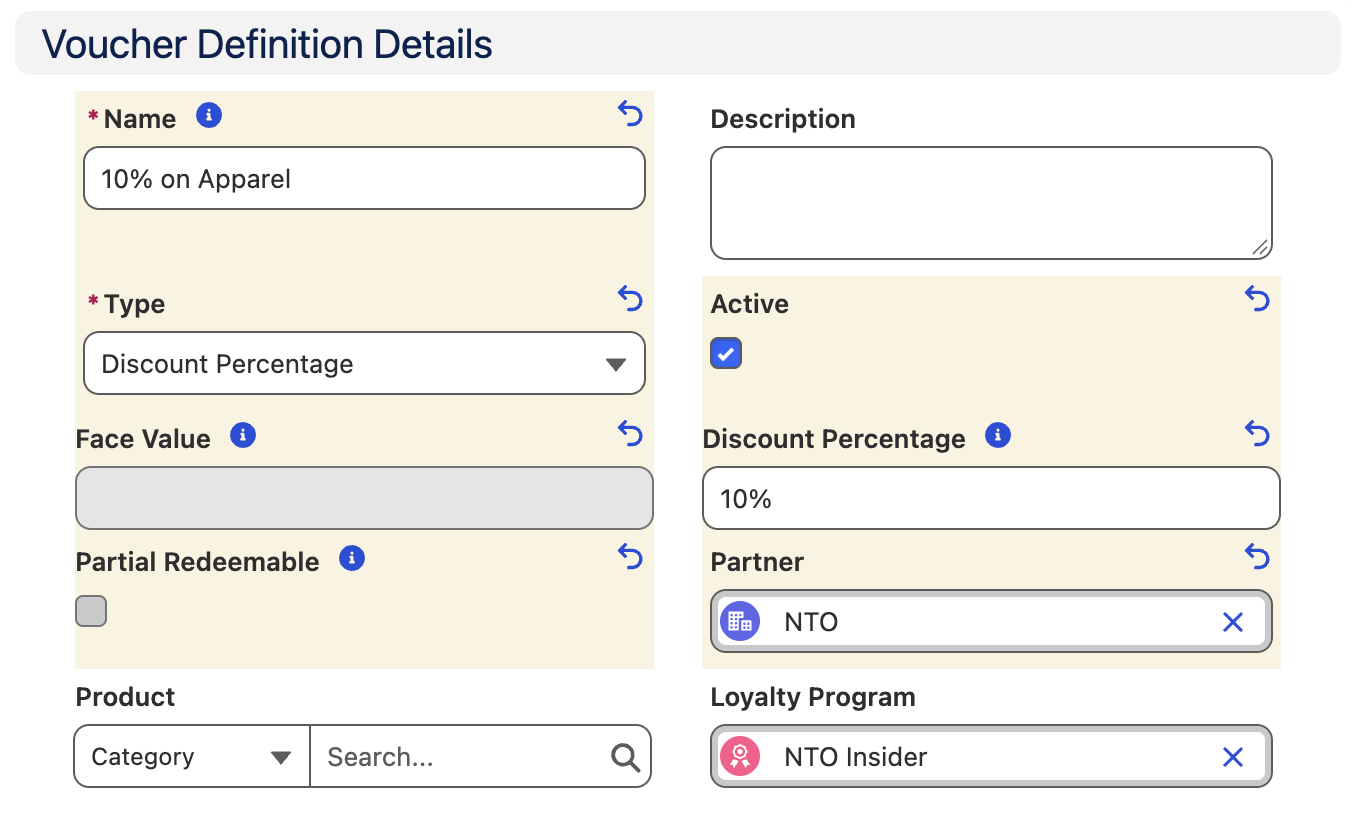
- Select Fixed Date from the Expiration Type menu.
- Select Today as the Effective Date.
- Set the Expiration Date to Dec 31 of the current calendar year.
Expiration Date
The voucher expiration date is the date on which the vouchers related to a voucher definition will expire.
- Enter
APPin the Code Suffix field. - Enter
10%in the Code Prefix field. - Enter
8in the Autogenerated Code Length field. - Click Save.
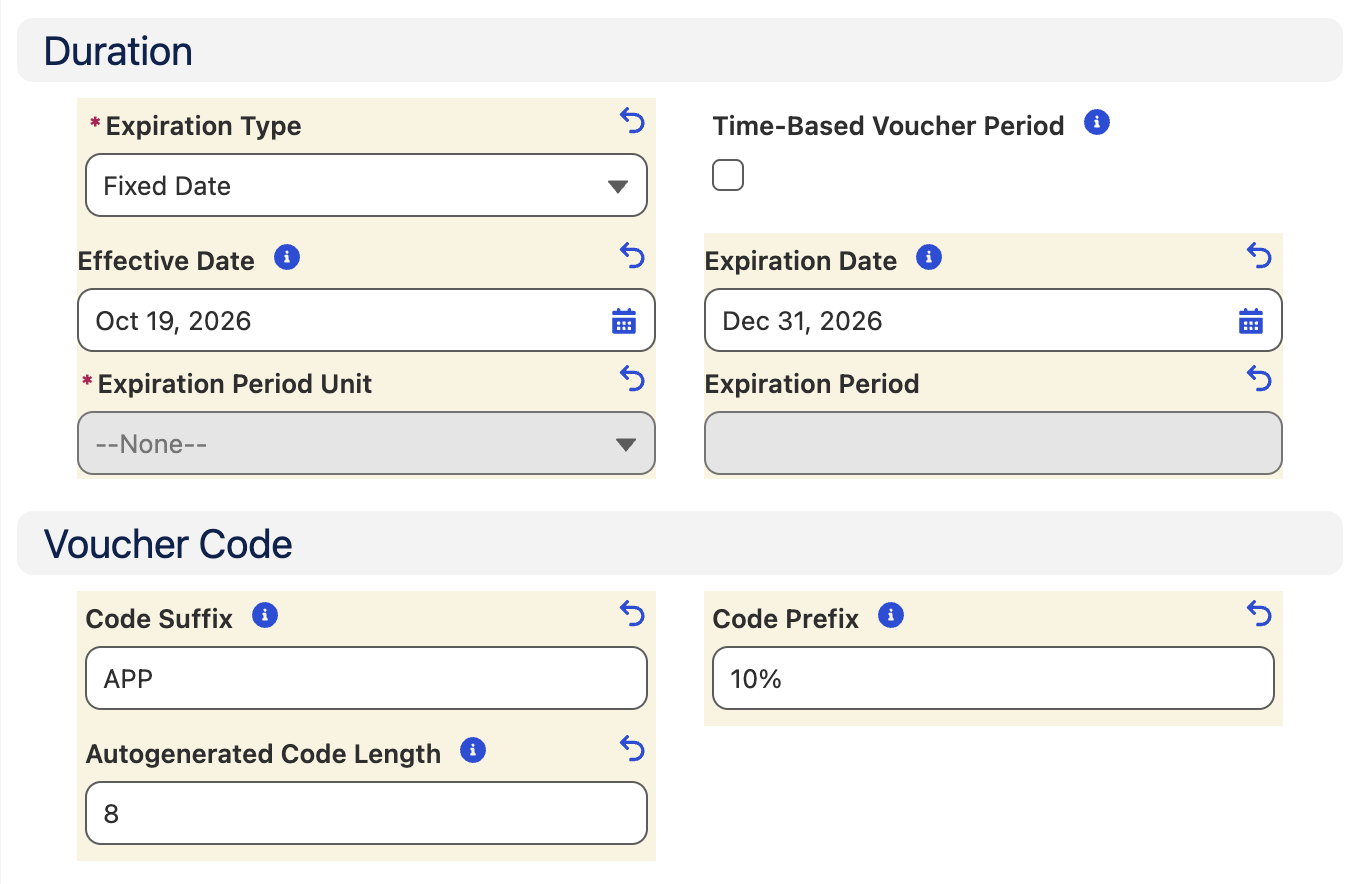
- Repeat steps 2-16 to create an additional voucher with the following definition:
| Field Name | Value |
|---|---|
| Name | 15% on Apparel |
| Type | Discount Percentage |
| Active | Enabled |
| Discount Percentage | 15 |
| Partner | NTO |
| Expiration Type | Period |
| Expiration Period Unit | Months |
| Expiration Period | 3 |
| Code Suffix | APP |
| Code Prefix | 15% |
| Autogenerated Code Length | 8 |
Expiration Date
You don’t need to set an expiration date for this voucher definition. An expiration date is required only when the expiration type is fixed date.