
Partner Management
Introduction
Loyalty Management enables the onboarding and managing of cross-industry program partners to increase member engagement with the loyalty program. Partnerships give your members more options to engage members and help them earn and redeem points for complementary products or services.
You can associate partners from different industries with loyalty program partners. Members can benefit from the partner and organization. Partners can be an accrual partner, a redemption partner, or both. An accrual partner rewards members with points for doing business with them. A redemption partner is where members spend their points.
In this workshop, you’ll create a loyalty partner account and associate it to a loyalty program with related partner products.
Create Industry Picklist Values
In Loyalty Management, industry picklist values are used to define for partner industries and program verticals. Picklist value aren’t provided by default. Based on the requirements of your organization, admins must add picklist values for the field in Object Manager.
- Click on the icon and click the first Setup menu item.
- Click Object Manager.
- Enter
Loyalty Program Partnerin the Object Manager Quick Find field. - Select Loyalty Program Partner from the filtered list.
- Click Fields & Relationships.
- Click Industry.
- Locate the Industry Picklist Values section and click New.
- Paste the following values to the text area field:
Retail
Wellness
Hotels- Click Save.
Create Partner Accounts
In this exercise, you will create partner business accounts then associate them with a loyalty program.
Person Accounts
In Loyalty Management, individuals in B2C programs are represented by person accounts.
Person accounts are enabled by default in Simple Demo Orgs. You may need to enable them in other orgs.
- Search for
Accountsfrom App Launcherand select the menu item. - Click New.
- Select Partner, then click Next.
- Enter
Klay Beautyin the Account Name field. - Click Save & New.
- Select Partner, then click Next.
- Enter
Hydra Salonin the Account Name field. - Click Save & New.
- Select Partner, then click Next.
- Enter
NTOin the Account Name field. - Click Save.
Associate Accounts with Loyalty Program
- Search for
Loyalty Managmentfrom App Launcherand select the menu item. - Click the NTO Insider program name from the loyalty program list view.
- Click the Manage Partners card.
- Click New.
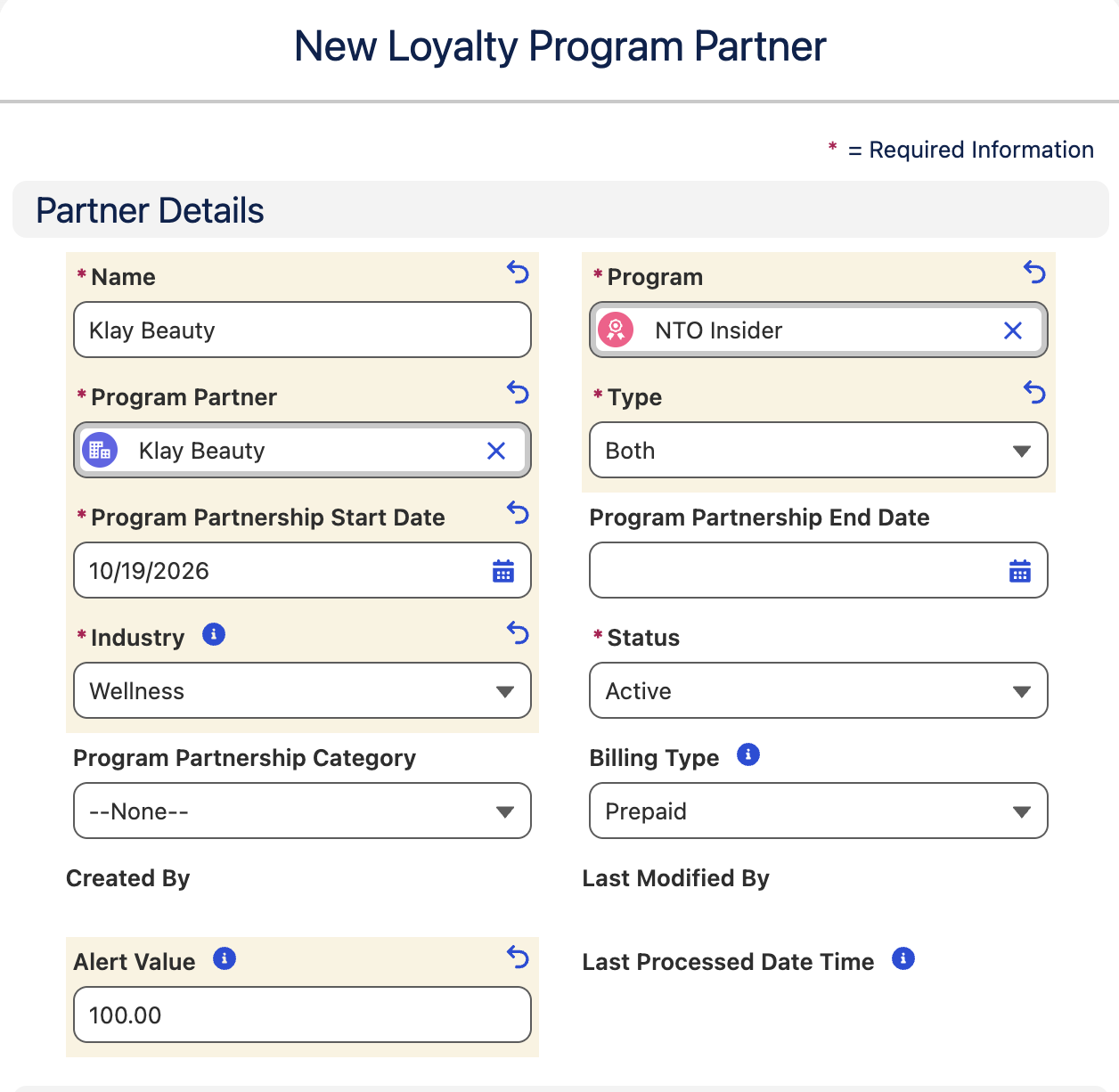
- Complete the following fields:
| Field Name | Value |
|---|---|
| Name | Klay Beauty |
| Program | NTO Insider |
| Program Partner | Klay Beauty |
| Type | Both |
| Program Partnership Start Date | Today |
| Industry | Wellness |
| Status | Active |
| Program Partnership Category | --None-- |
| Billing Type | Prepaid |
| Alert Value | 100 |
- Click Save & New.
- Complete the following fields:
| Field Name | Value |
|---|---|
| Name | Hydra Salon |
| Program | NTO Insider |
| Program Partner | Hydra Salon |
| Type | Redemption |
| Program Partnership Start Date | Today |
| Industry | Wellness |
| Status | Active |
| Program Partnership Category | --None-- |
| Billing Type | Postpaid |
| Alert Value | 5000 |
- Click Save & New.
- Complete the following fields:
| Field Name | Value |
|---|---|
| Name | NTO |
| Program | NTO Insider |
| Program Partner | NTO |
| Type | Both |
| Program Partnership Start Date | Today |
| Industry | Retail |
| Status | Active |
| Program Partnership Category | --None-- |
| Billing Type | Postpaid |
| Alert Value | 1000 |
- Click Save.
Associate Product Categories to Partner
- Return to the NTO Insider program page.
- Click the Members And Partners tab.
- Click NTO from the Loyalty Program Partners related list.
- Click Add Products.
- Click the Add Product Categories tile, then click Next.
- Select Sweatshirts and T-Shirts.
- Click Done.
- Return to the NTO Insider program page.
- Click the Members And Partners tab.
- Click Klay Beauty from the Loyalty Program Partners related list.
- Click Add Products.
- Click the Add Product Categories tile, then click Next.
- Select Services.
- Click Done.