
Accrual Processes
Introduction
Accrual transactions occur when a member performs an activity that earns them points. For example, an activity can be a product purchase from a host business or partner, a bonus, or any other business interaction. The business is responsible for payment when the member redeems or makes a claim for rewards.
In accrual processing, points are credited to the members using business flow in a batch mode. You can schedule a job to process the accrual transactions.
In this workshop, you’ll configure a loyalty accrual process, define its process rules, and set process-level eligibility conditions.
Create Journal Subtype
Journal Subtypes determine the subtype of the transaction journals that must be processed by the program process. In this exercise, you will create a new journal subtype which you will use to create a loyalty program process.
- Search for
Journal Subtypesfrom App Launcherand select the menu item. - Click New.
- Enter
Purchasein the Name field. - Search and select
Accrualin the Journal Type field. - Click Save.
Create Loyalty Program Process
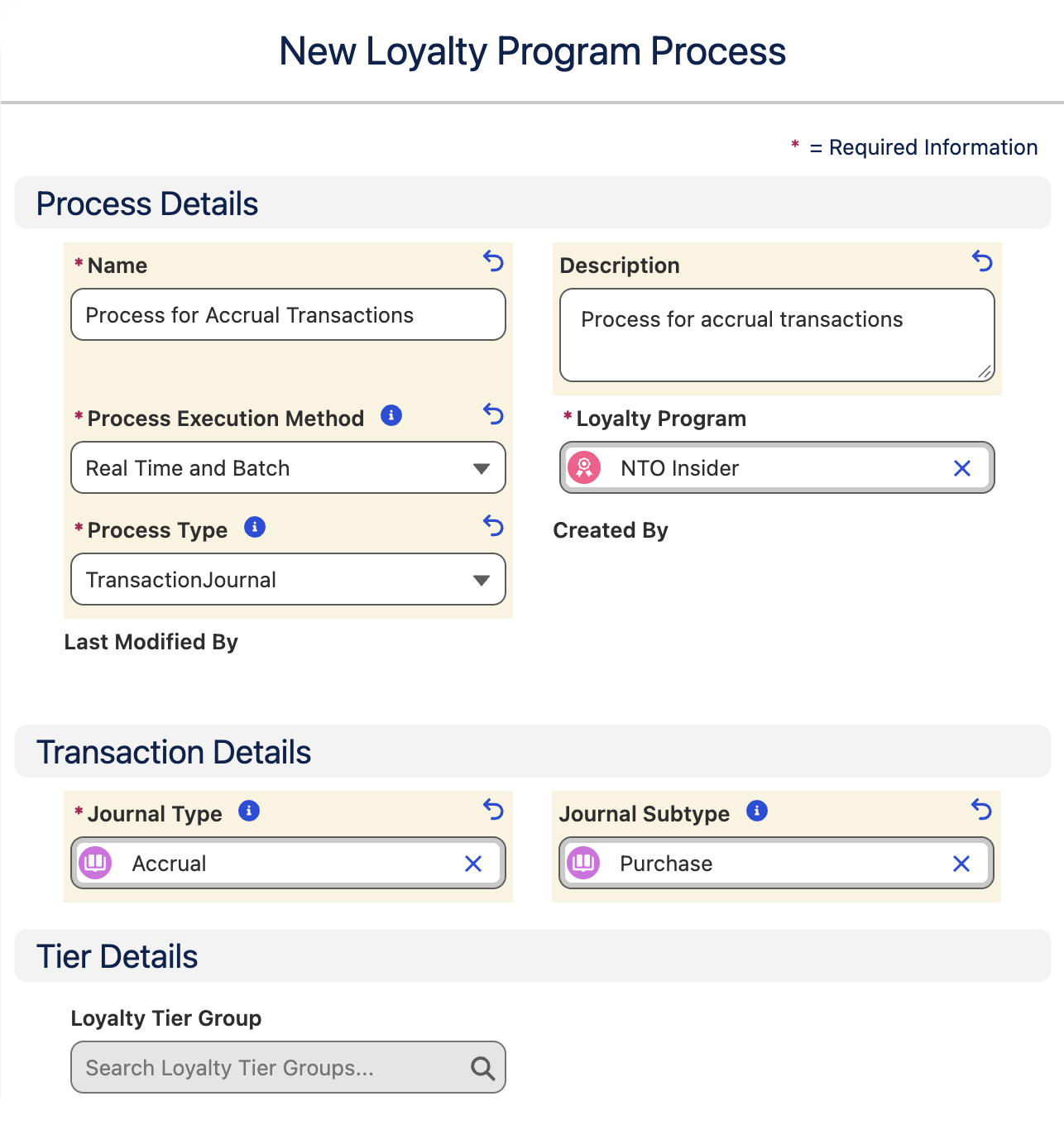
In this exercise, you’ll configure a base accrual rule that awards members non-qualifying (redeemable) points and qualifying (tier) points equal to their transaction amount, regardless of their tier.
- Search for
Loyalty Managementfrom App Launcherand select the menu item. - Click the NTO Insider program name from the loyalty program list view.
- Click the Manage Processes card.
- Click New.
- Select Create from Scratch, then click Next.
- Enter the following values:
| Field Name | Value |
|---|---|
| Name | Process for Accrual Transactions |
| Description | Process for accrual transactions |
| Process Execution Method | Real Time and Batch |
| Loyalty Program | NTO Insider |
| Process Type | TransactionJournal |
| Journal Type | Accrual |
| Journal Subtype | Purchase |
- Click Save.
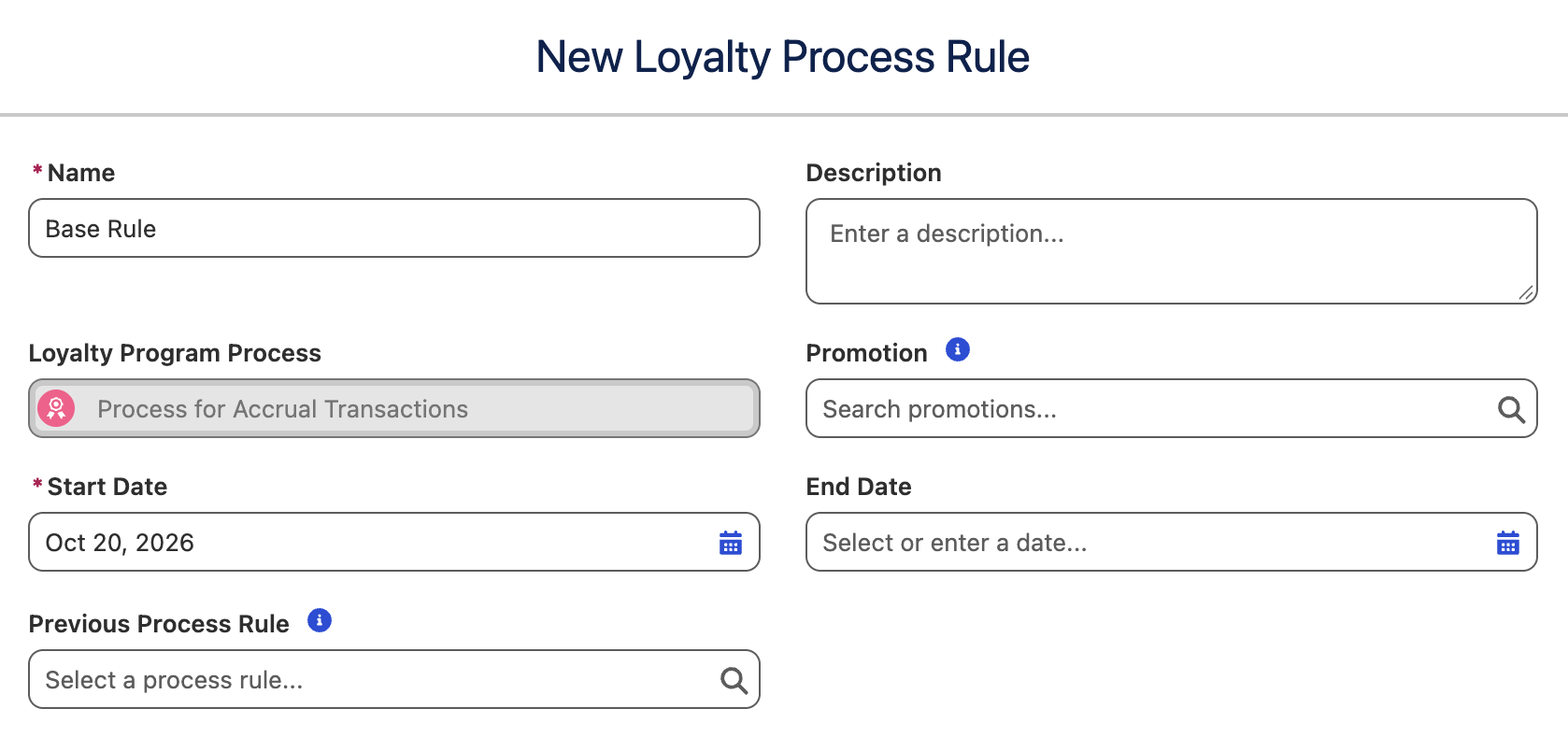
- Locate the Loyalty Process Rules related list and click New to create a new loyalty process rule.
- Enter
Base Rulein the Name field. - Select Today in the Start Date field.
- Click Save.
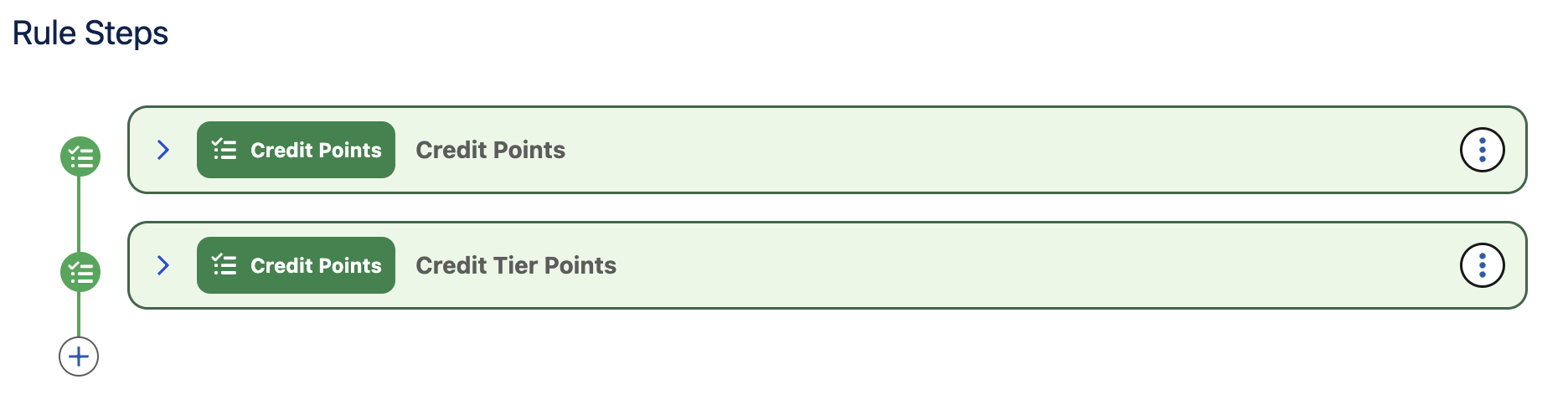
- Click the
icon in the Rule Steps section, then select Add Rule Outcome > Credit Points. - Enter the following values:
| Field Name | Value |
|---|---|
| Action Name | Credit Points |
| Currency Name | Fixed Value with Points subtype |
| Points to Credit | Transaction Journal > Transaction Amount |
- Select the Output Parameters tab.
- Select
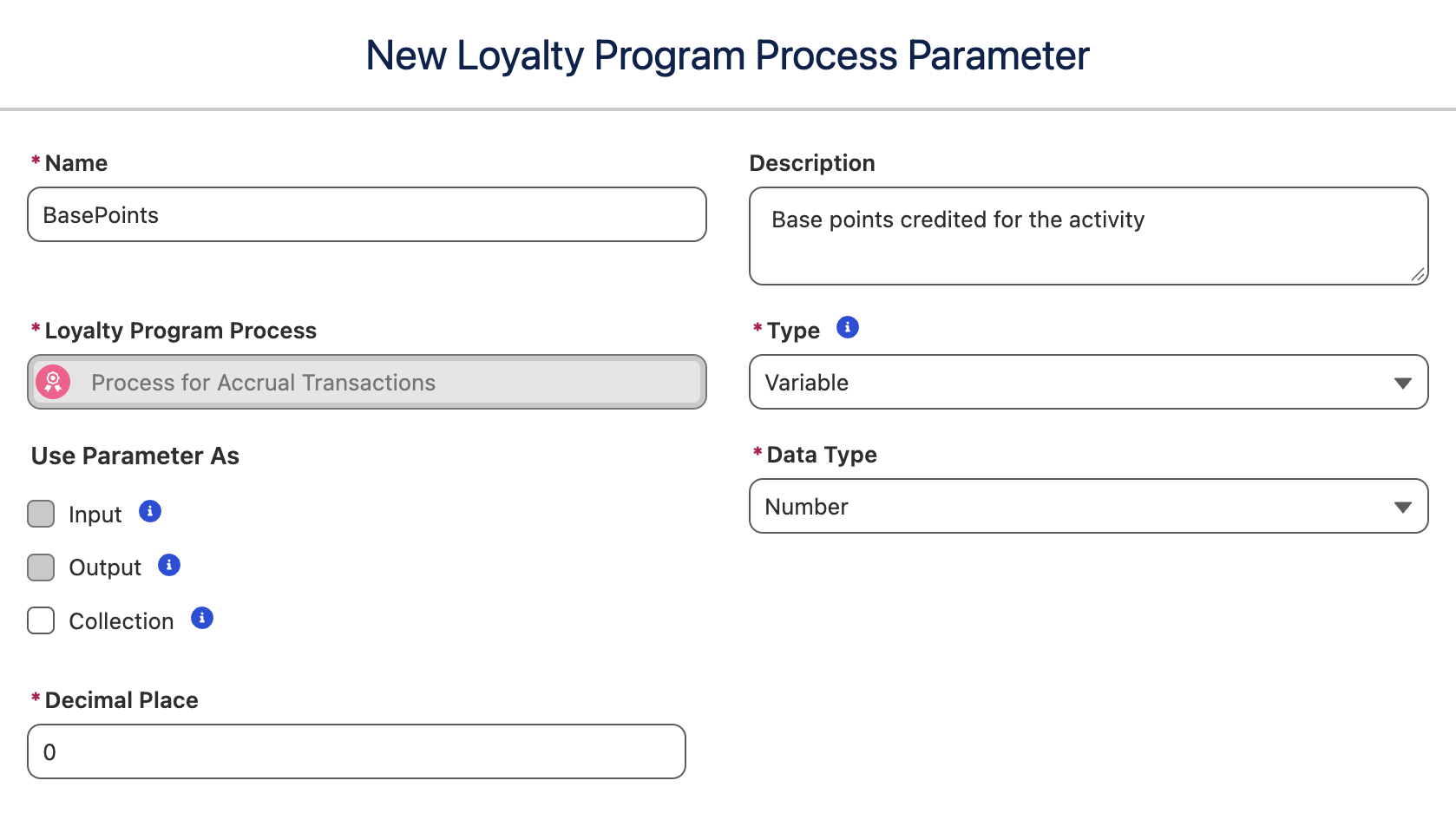
New Parameter in the Points Credited field. - Enter the following values:
| Field Name | Value |
|---|---|
| Name | BasePoints |
| Description | Base points credited for the activity |
| Type | Variable |
| Data Type | Number |
| Decimal Place | 0 |
- Click Done.
- Click the
icon in the Rule Steps section, then select Add Rule Outcome > Credit Points. - Enter the following values:
| Field Name | Value |
|---|---|
| Action Name | Credit Tier Points |
| Currency Name | Fixed Value with Tier Points subtype |
| Points to Credit | Transaction Journal > Transaction Amount |
- Select the Output Parameters tab.
- Select BasePoints in the Points Credited field.
- Click Done.
- Click Save.
- Click Activate.
Define Process Level Eligibility
Process-level eligibility conditions are filters applied to a transaction journal before any rules in a Loyalty Program Process run. They let you define criteria that apply to every rule in that process, instead of repeating the same condition in each rule.
For example, an accrual process could require that the member is active and the transaction amount is below a defined limit. Journals that pass the process conditions are then evaluated by the process’s active rules; journals that fail are filtered out.
In this exercise, you will create process eligibility conditions that checks for the transaction journal status.
- Navigate back to the Process for Accrual Transactions page from the Process link on the current page.
- Click Define Process Eligibility.
- Check the Enable process eligibility conditions checkbox.
- Select Loyalty Aliases > TransactionJournal > Status from the Resources menu.
- Select Equals from the Operator menu.
- Select Fixed Value from the Type menu.
- Select Processed from the Value menu.
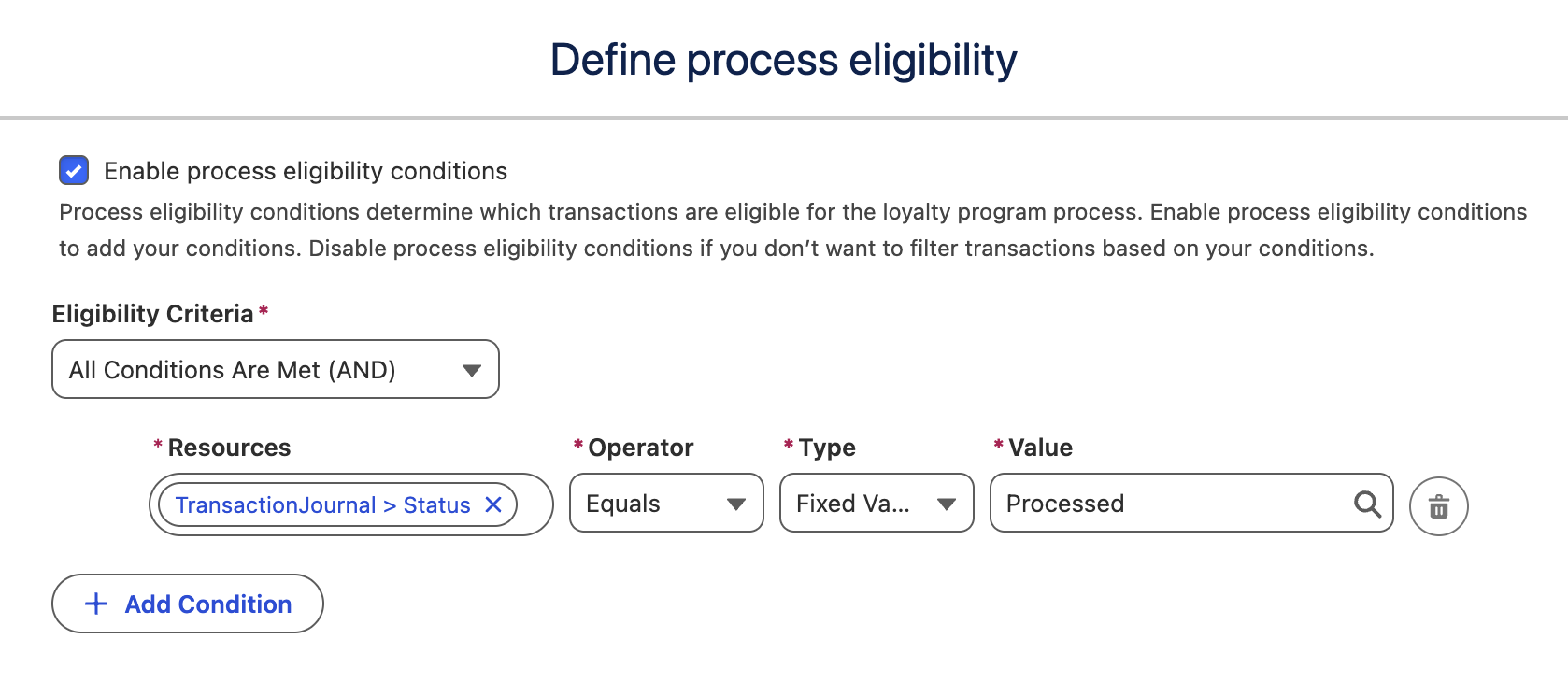
- Click Save.
- Click Activate.