
Email Recommendations
Introduction
Recommenders in Salesforce Personalization deliver individualized product and content recommendations tailored to each customer. By combining a data provider with a repeater component in an email, you can dynamically surface recommendations from both rules-based and objective-based recommenders directly in an email.
Watch the video below to learn how you can include recommenders in your email content.
Enter the password LearnSPtoday to play the video.
Workshop Prerequisites
Before starting this workshop, please complete the following workshops, as this exercise depends on an existing calculated insight, data graphs, and recommender configuration.
Add Trusted URL
The sample data file imported during the Product Catalog Data Stream setup includes image URLs hosted on an external domain. These images will be displayed in your email using a repeater component. To ensure the images render correctly when previewing the email in Agentforce Marketing, you must add the image domain as a Trusted URL.
- Click on the icon and click the first Setup menu item.
- In the Quick Find field, enter
Trustedand select Trusted URLs. - Click New Trusted URL.
- Enter
Veloin the API Name field. - Enter
https://velo-production-app-20f99a3f8353.herokuapp.comin the URL field. - Click Save.
Create Email
In this exercise, you will use a rules-based Top Sellers recommender to personalize an email with relevant product recommendations.
Import Email
- Search for Marketing from App Launcher
. - Select the Marketing App (with a gray icon).
- Click on the Content tab.
- Click on Content Workspace for Marketing Cloud.
- Click this link to save the file to your local computer.
- Select Import form the Manage menu.
- Click
Upload and select the zip file you downloaded.
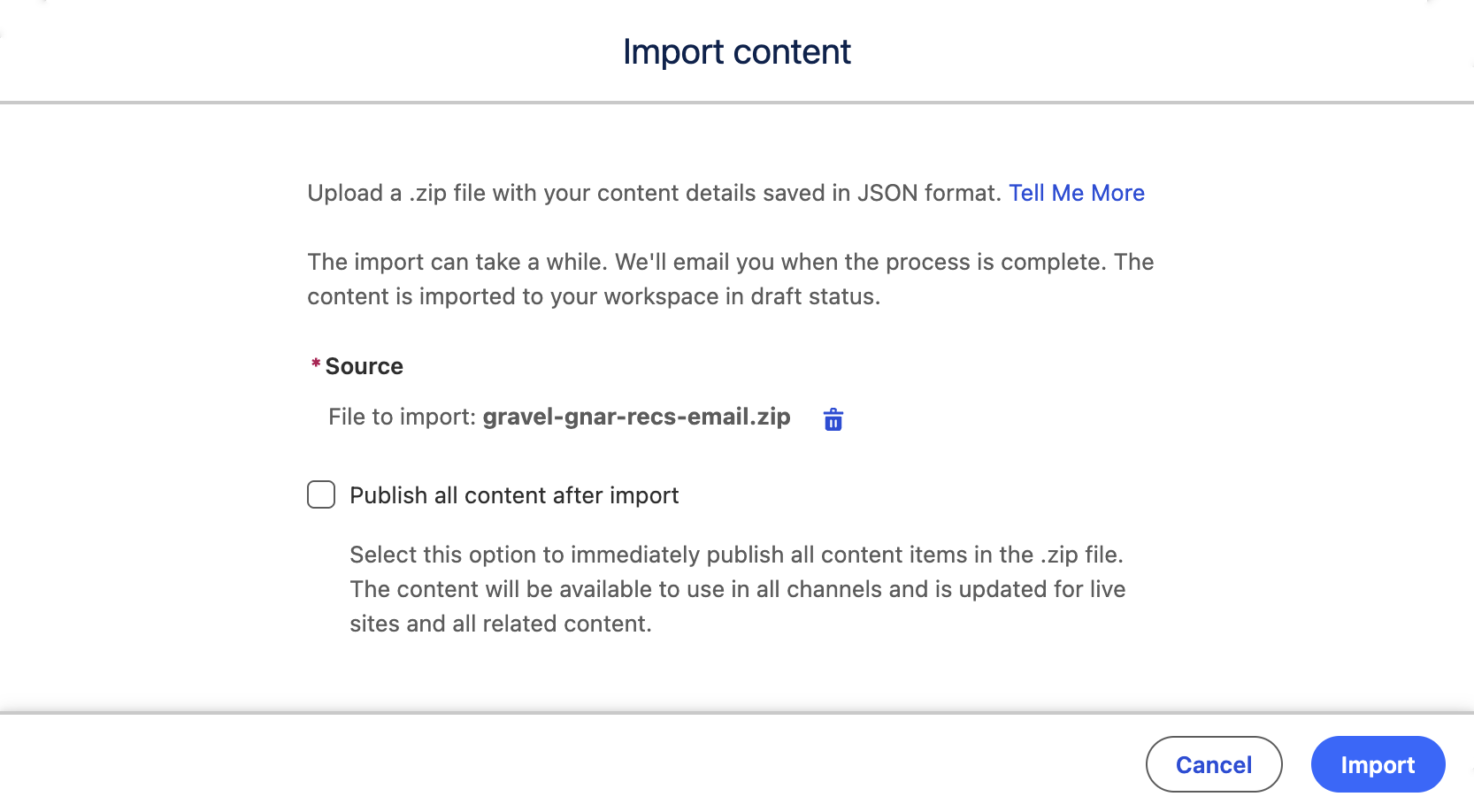
- Click Import.
- Reload the page.
Add Data Provider
- Open the imported Gravel Gnar Bikes folder, then click the Gravel Gnar Recs email.
- Click Edit.
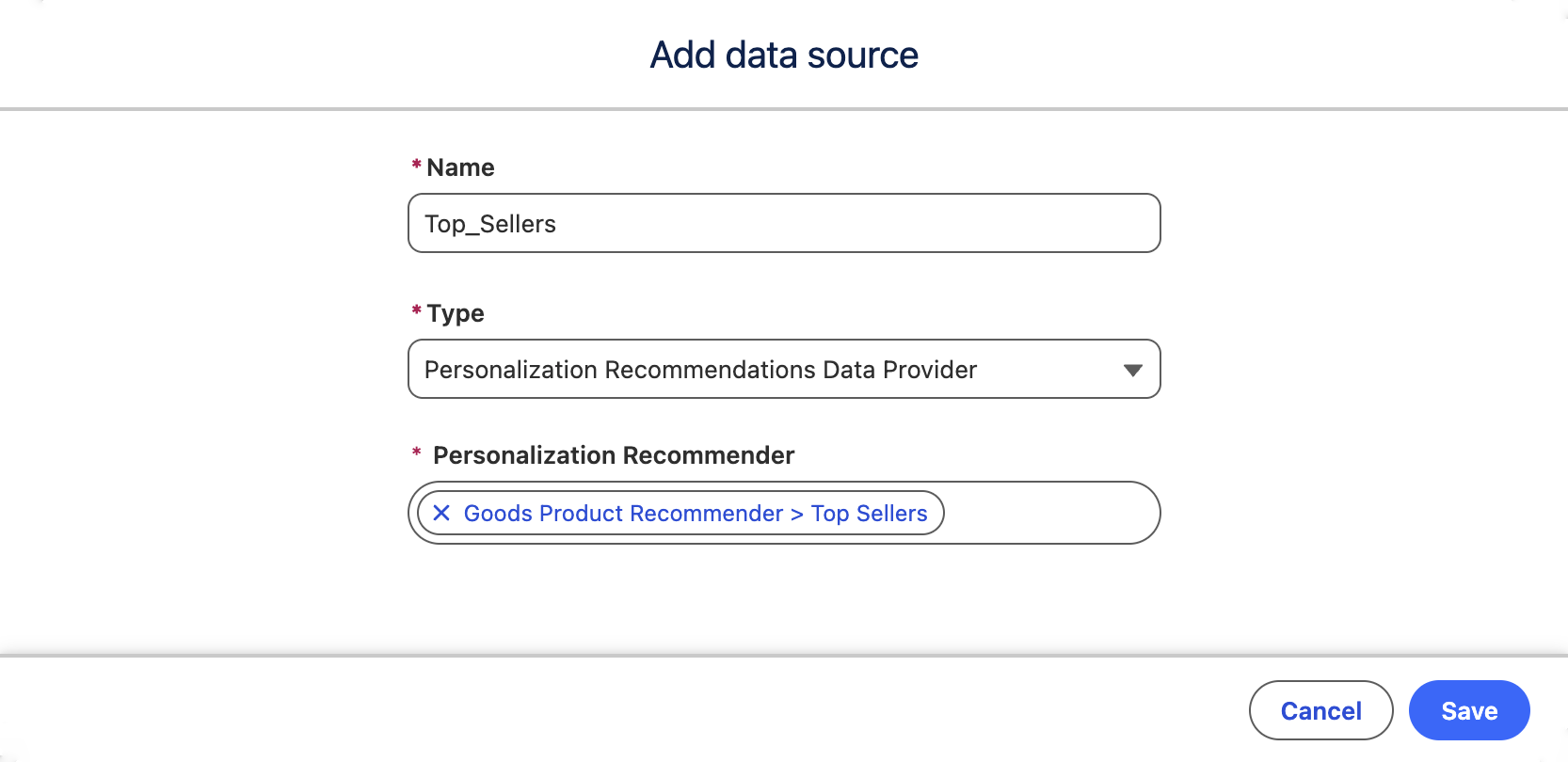
- Click Data Sources, then click Add.
- Select Personalization Recommendations Data Provider from the Type menu.
Available Recommenders
Only recommenders built using the same Profile Data Graph configured as a data source for the email are available for selection.
- Select Goods Product Recommender > Top Sellers from the Personalization Recommender field.
- Enter
Top_Sellersin the Name field, then click Save.
Add Repeater
- Expand the Layout section from the Components menu, then drag the Repeater element to the empty section.
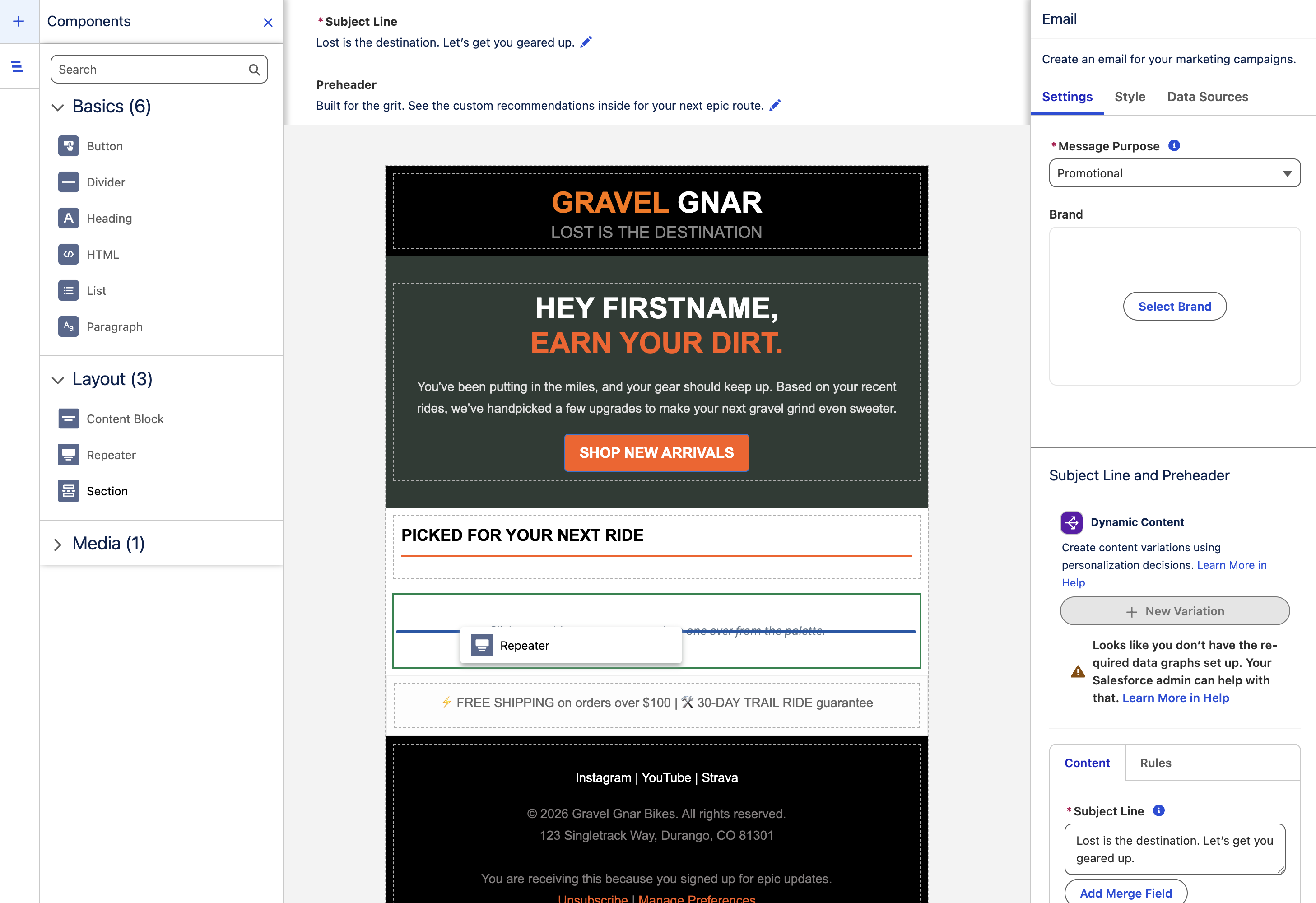
- Select Top Sellers > Recommendations from the Repeater Source menu.
- In the Data Layout section, increase the Number of Items to Show to 6.
- Select the Image container in the repeater element, then select Merge field from the Select image source setting.
- For each field, click Add Merge Field, select the respective resource path from the table below, then click Done.
| Field | Resource Path |
|---|---|
| Source | Recommendations > Image URL |
| Alt Text | Recommendations > Product Name |
| Caption | Recommendations > Product Name |
| Link URL | Recommendations > Product URL |
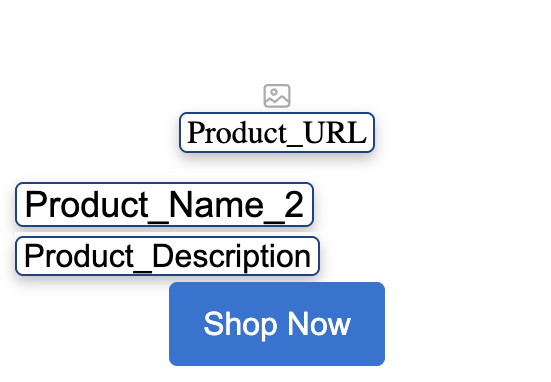
- Continue configuring merge fields for the remaining placeholder elements in the repeater block using the mappings provided in the table below. Choose Link to Dynamic URL for the button action.
| Placeholder | Resource Path |
|---|---|
| Heading | Recommendations > Image Name |
| Text | Recommendations > Product Description |
| Button Action | Recommendations > Product URL |
- Optionally, add a label for the button. Once configured, the repeater element should resemble the example shown below.
- Click Save.
- Click Preview.
- Select an existing segment and recipient to preview the recommender.
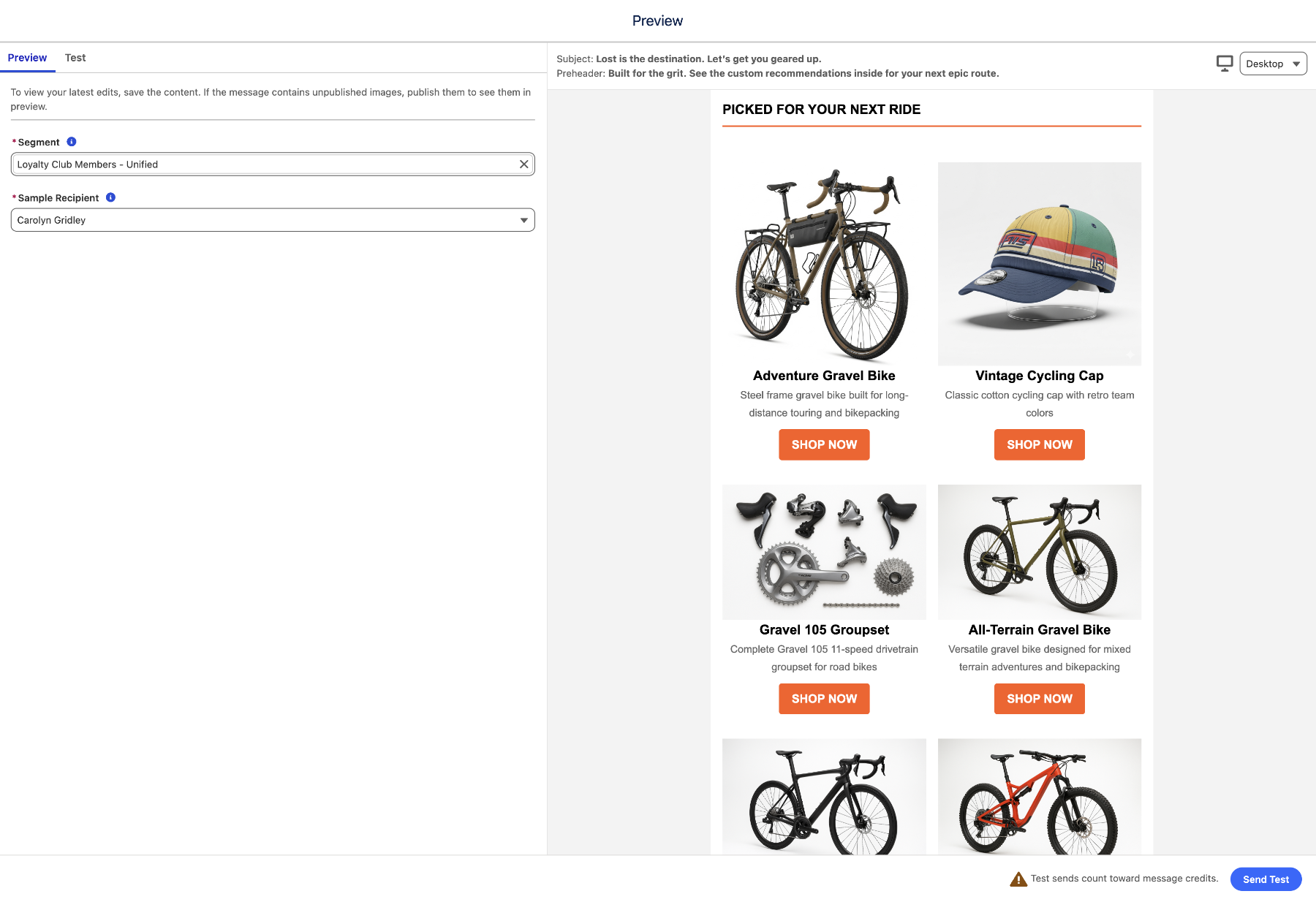
- Optionally, further customize your email by incorporating additional data sources, merge fields, and custom styles.